

How mapping works
Every booking from your accounting data can be assigned a category. That assignment is the basis of management reporting: it decides which category and which reporting section a booking appears in.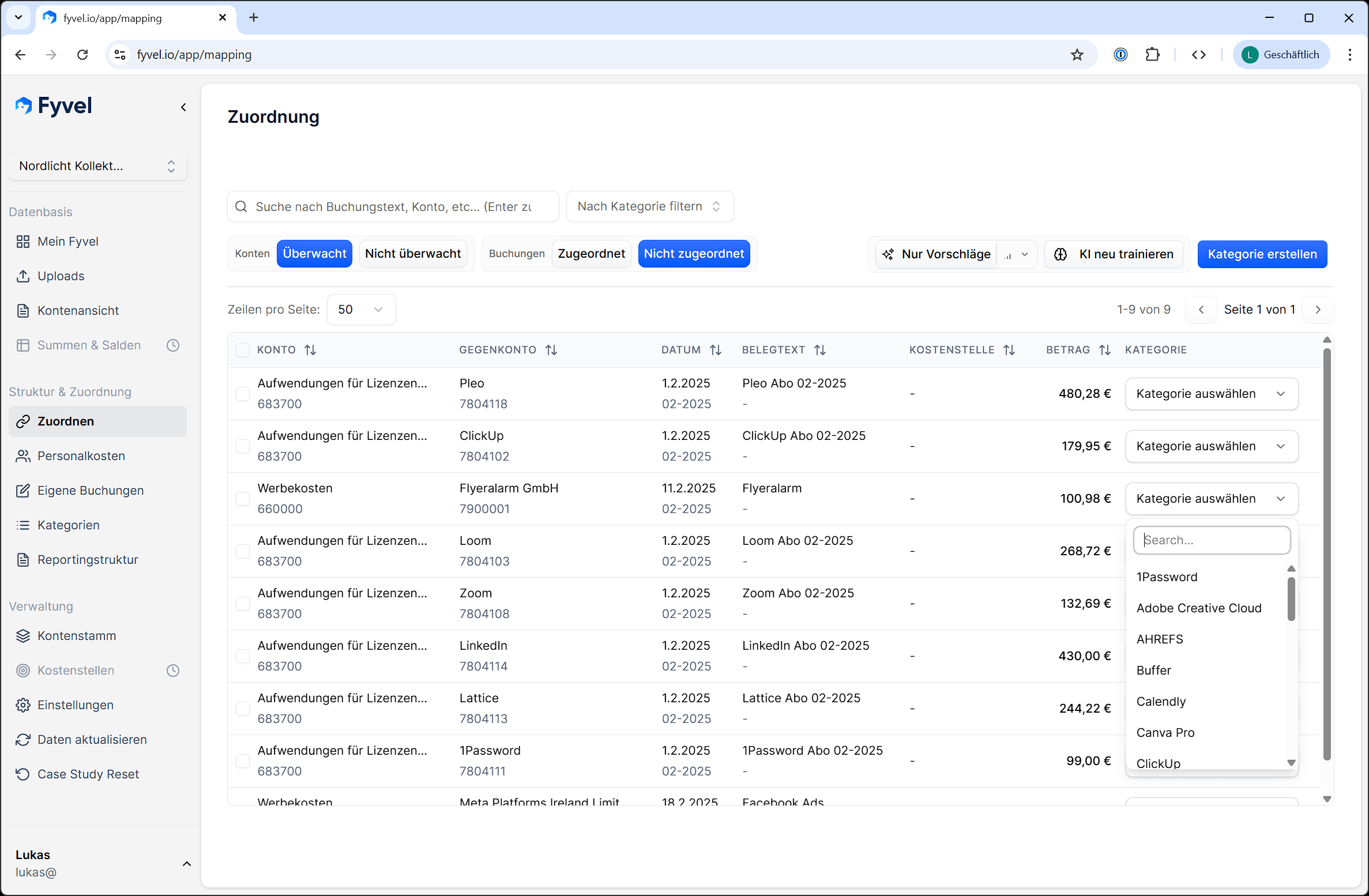
Mapping table with bookings and categories
The table
For each booking you see:
Sortable columns are marked with small arrows. Click a column header to sort ascending. Click again to reverse the sort.
Map a single booking
In the dropdown next to a booking, choose the matching category. The assignment is saved immediately. You can change or remove an assignment at any time. Ignore is at the top of the dropdown when Ignore bookings is enabled in Company settings (off by default). Ignored bookings leave the default view (unmapped) and stay in reports on the account — without a category. Assigning a category later clears ignore automatically. The X on the dropdown clears the assignment or the ignore. After training, the AI can suggest Ignore for similar open bookings — accept or decline it the same way as a category. Bookings that are already ignored stay ignored even if you turn the setting off later. You find them under Mapped / ignored.Map several bookings at once (bulk)
- Select several bookings with the checkboxes.
- In the bulk action bar, choose a category — or Ignore (when it is enabled).
- Every selected booking is assigned that category, or ignored.
Filters and search
Free-text search
Search posting text, account numbers, and other fields. Press Enter to run the search.Account filter
- Tracked accounts (default) — shows only bookings on accounts marked as tracked.
- Untracked accounts — shows bookings on untracked accounts. These can be categorised too.
Mapping filter
- Not mapped (default) — shows only bookings without a category and without ignore. Use this to work through open assignments.
- Mapped — shows mapped bookings. When ignore is enabled in company settings, the filter is called Mapped / ignored and also includes ignored bookings.