

Overview
This page describes the monthly path through DATEV Unternehmen Online: you export the account-ledger view as CSV and upload the file to Fyvel. An overview of every import path is on Uploads.This path requires that you have access to DATEV Unternehmen Online. Only then can you control the report settings that this import depends on. If the tax advisor creates the export, the wrong files often come back: a PDF, the old account-ledger view, a full-year view, or an export without creditor and debtor accounts. If you work without your own access, the GDPdU year upload is the more reliable path, because the format is standardised.
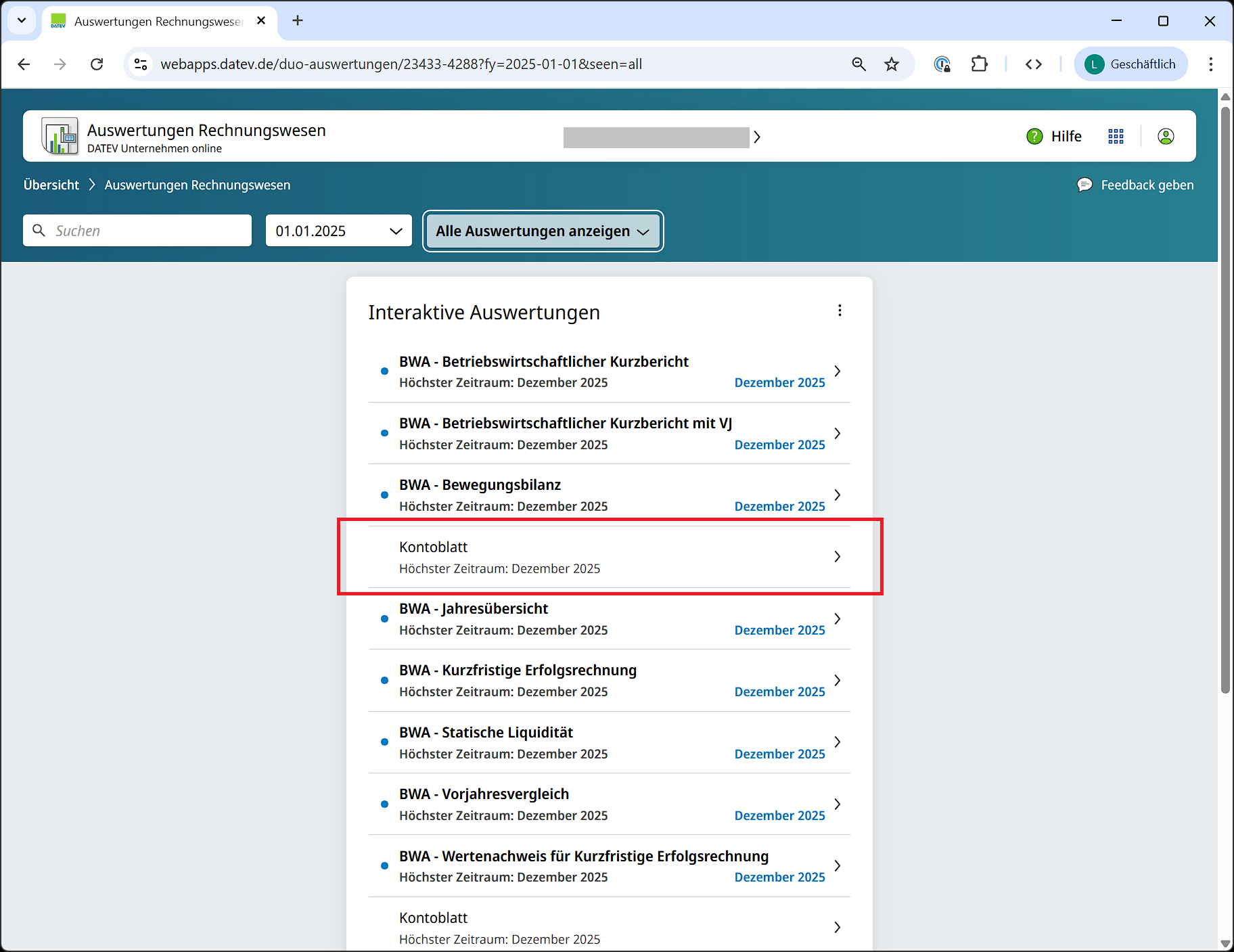
Find the DATEV account-ledger view
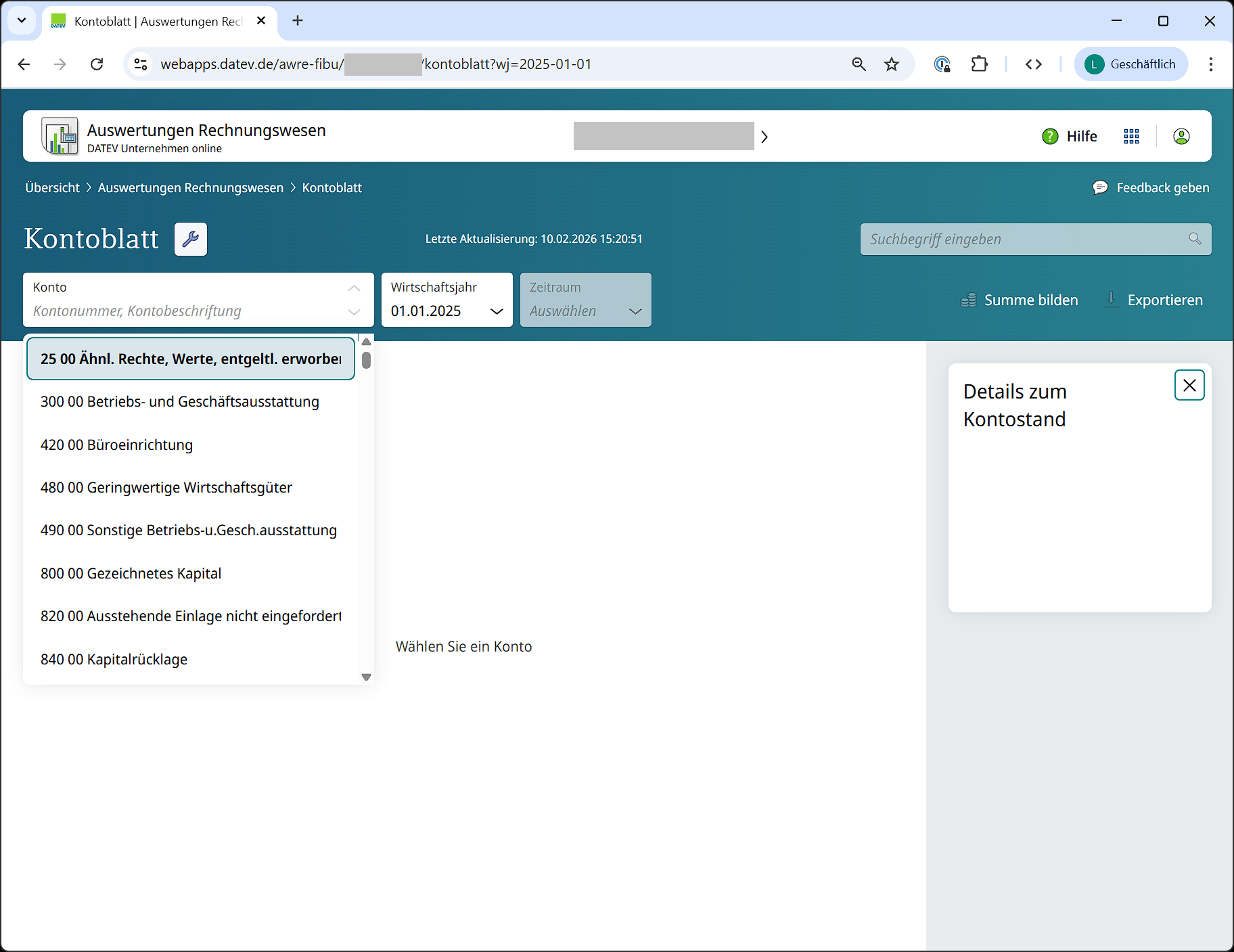
DATEV account-ledger view
DATEV report settings
The view is easy to configure. Keep in mind:- The settings are per user and may need to be set separately for each user.
- The settings stay saved after you log out.
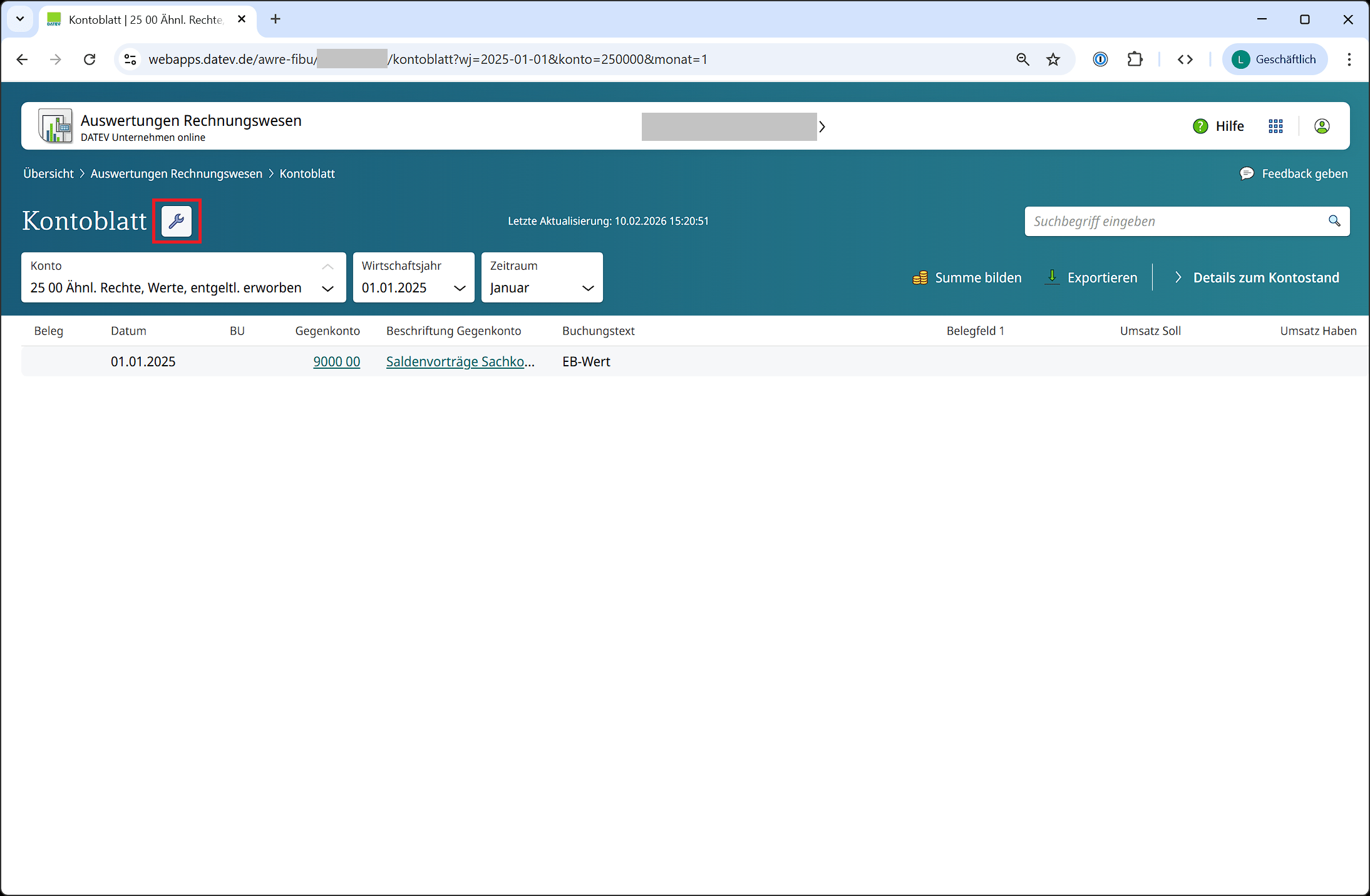
Settings step 1
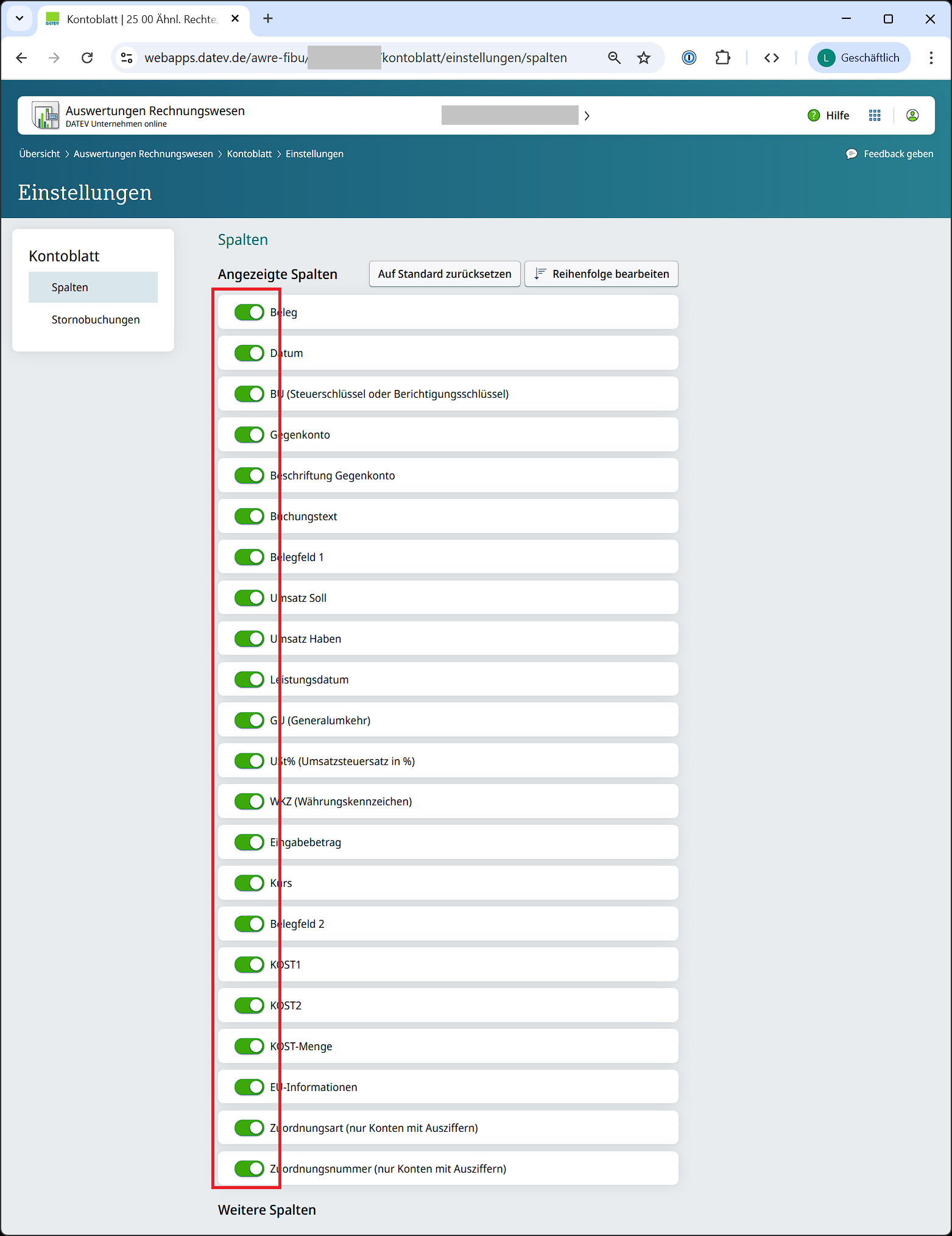
Settings step 2
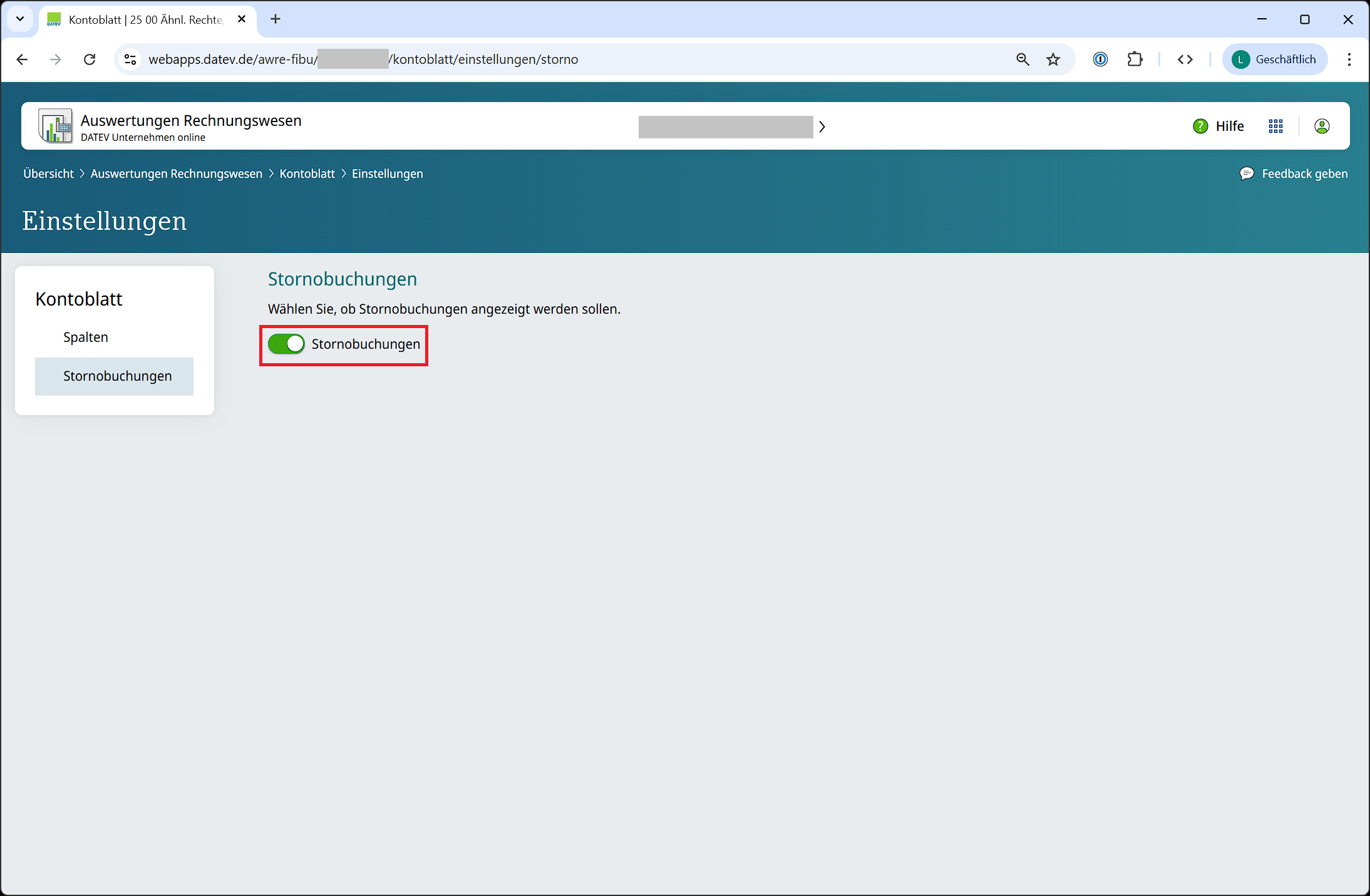
Settings step 3
Language of the DATEV interface
Fyvel expects the account-ledger export from the German DATEV interface. If DATEV is set to English (or another language), the CSV structure changes: typically the second row is a run of semicolons (;;;;;;) instead of a blank line. Those files cannot be processed.
- Set the language in DATEV to German.
- Sign in again so the setting takes effect.
- Export the account ledger again and upload the new file to Fyvel.
Screenshot to follow. An image of the DATEV language setting will appear here.
Download the data
Use the export button in DATEV to download the data. Check the following:- Choose CSV rather than PDF
- Select all accounts, not only general-ledger accounts. Creditor and debtor accounts must be included, otherwise the import fails because bookings point at missing offset accounts.
- Download by month, not a full-year view
- Use the German DATEV interface
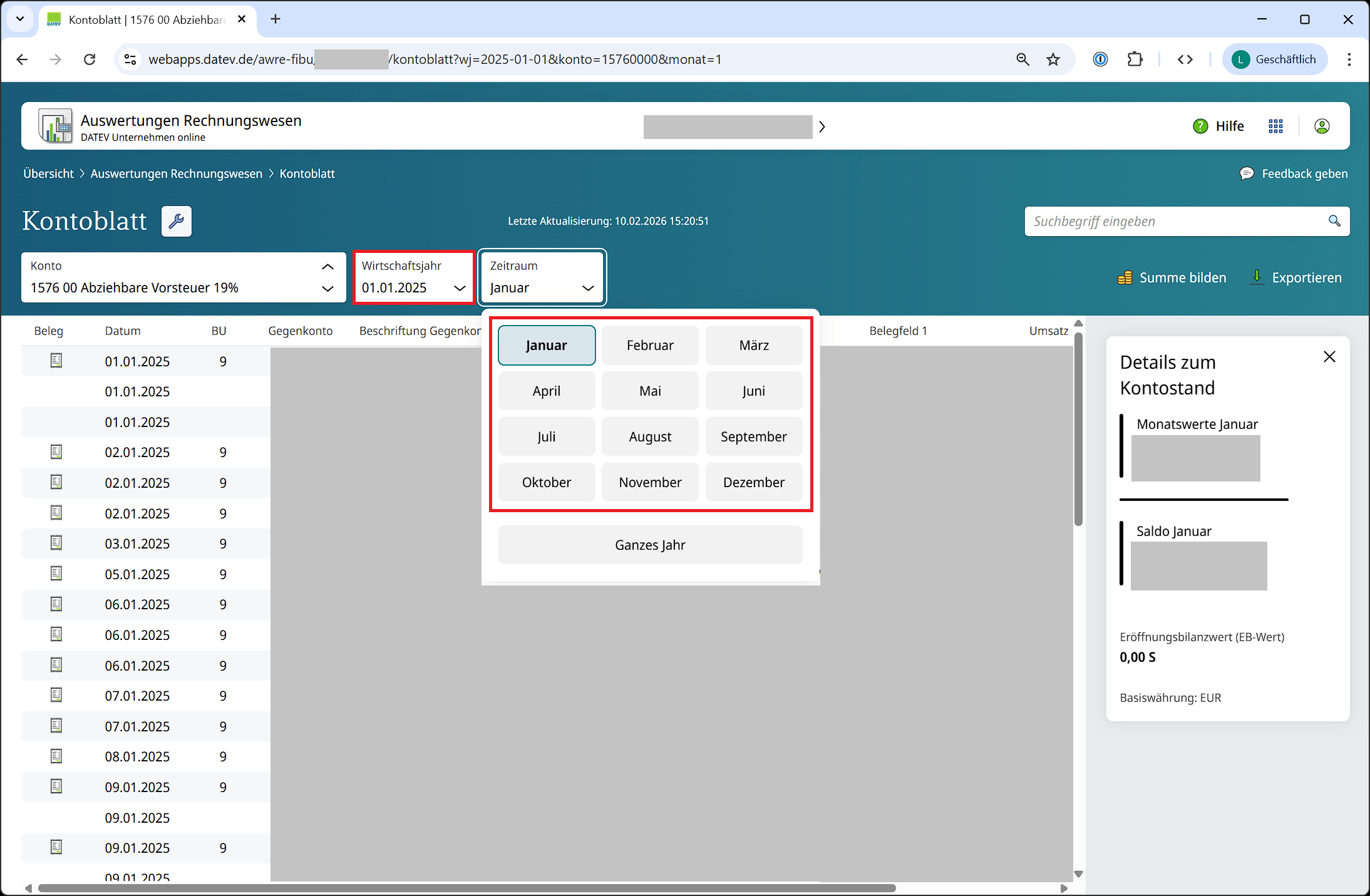
Select one month
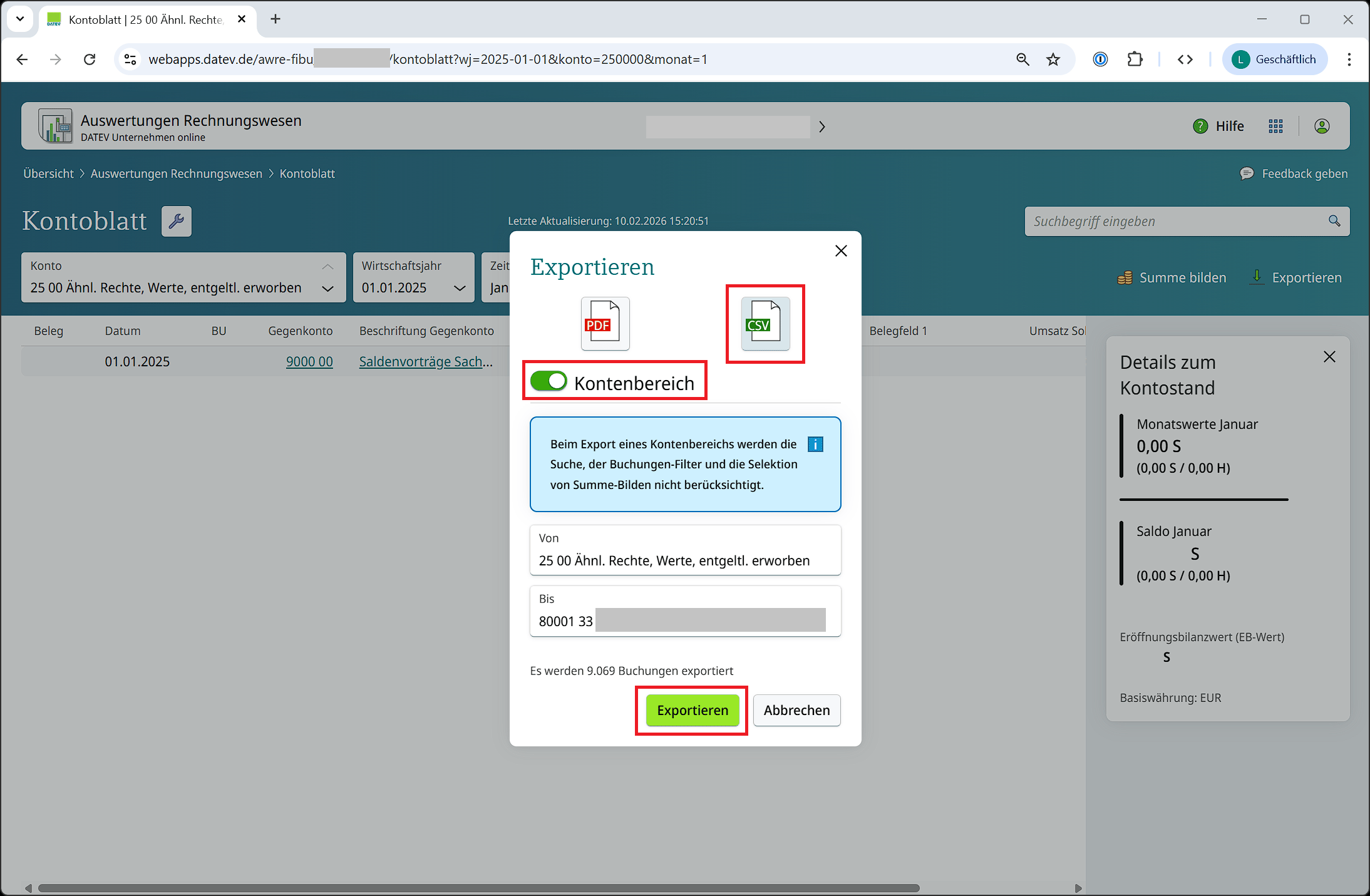
Export an account range as CSV
Upload in Fyvel
- In Fyvel, open the Uploads page.
- Drag the CSV files into the upload area. You can upload up to 12 files at once.
- Fyvel processes the files in the background. You see the status in the upload table.