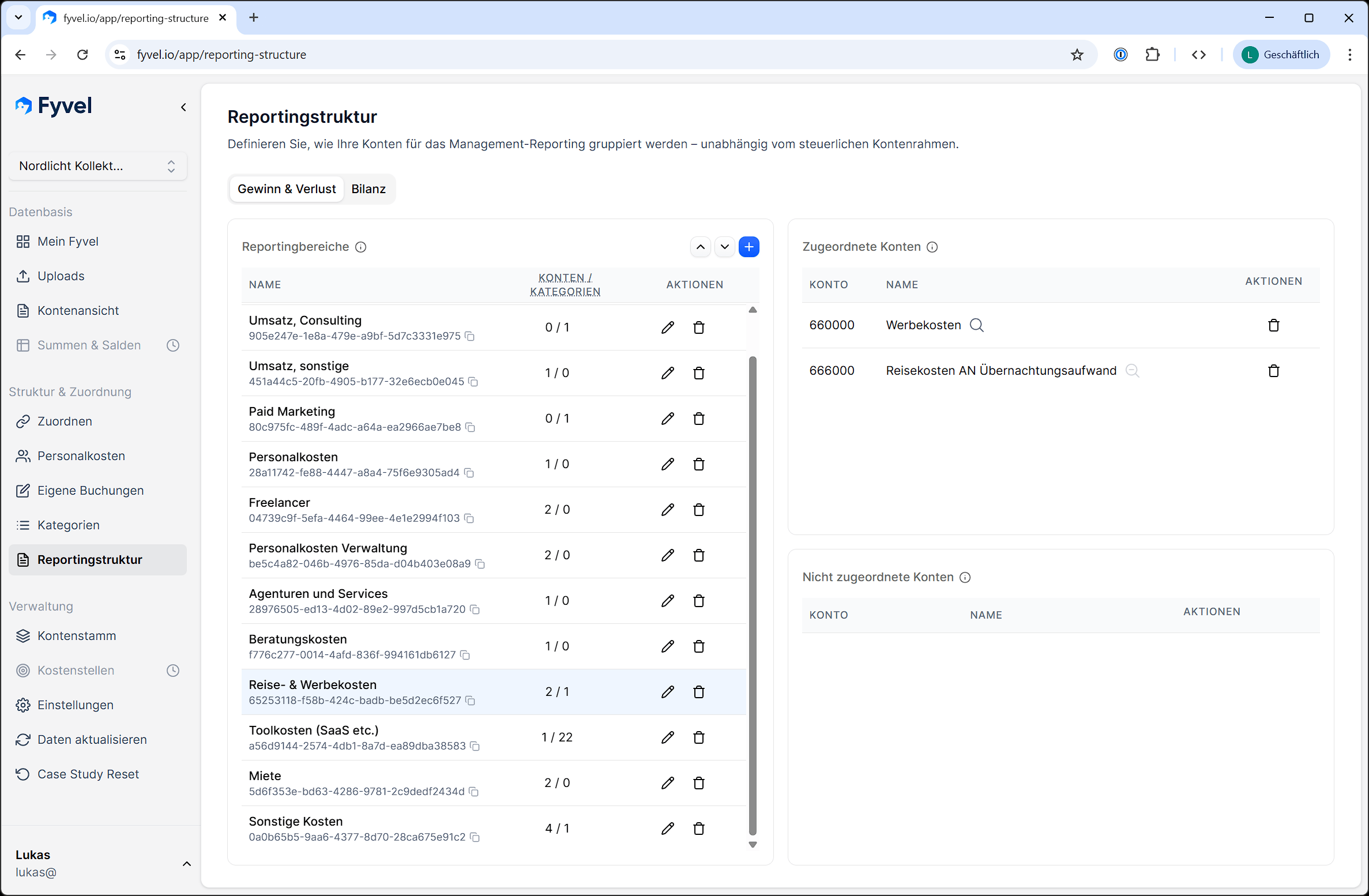
The reporting structure defines how your accounts are grouped for management reporting. Instead of the standard tax layout, you build a structure that reflects how your company works.
Reporting structure in Fyvel with a left column for sections and a right column for assigned and unassigned accounts

Reporting structure with sections and account assignment

Layout

The reporting structure is split into two areas:
  • Profit and loss (P&L) — income and expense accounts
  • Balance sheet — asset and liability accounts
Switch between them with the tabs.

Manage reporting sections

Create sections

Create sections such as “Revenue”, “Personnel costs”, “Marketing”, “IT infrastructure”, or “Other operating expenses”. Each section has an internal name and a display name.

Change the order

The order of the sections determines how they appear in reports and on the dashboard. Move sections up or down with the arrow buttons.

Delete sections

Sections you no longer need can be deleted. Assigned accounts are marked as unassigned again.

Assign accounts

The page is split into two columns: Left column: reporting sections — all sections of the active tab (P&L or balance sheet). Select a section to see its accounts. Right column, top: assigned accounts — every account assigned to the selected section. Click an account to remove it (it is then marked as unassigned). Right column, bottom: unassigned accounts — every account of the active account type (P&L or balance sheet) that is not assigned to a section yet. Click an account to assign it to the selected section.

Warnings

A badge in the sidebar appears when accounts are not assigned to a reporting section yet. Review these regularly so your reports are complete.

Tip

Start with a coarse structure (for example 5–10 sections) and refine it later. You can change the structure at any time. Existing mappings stay in place.