

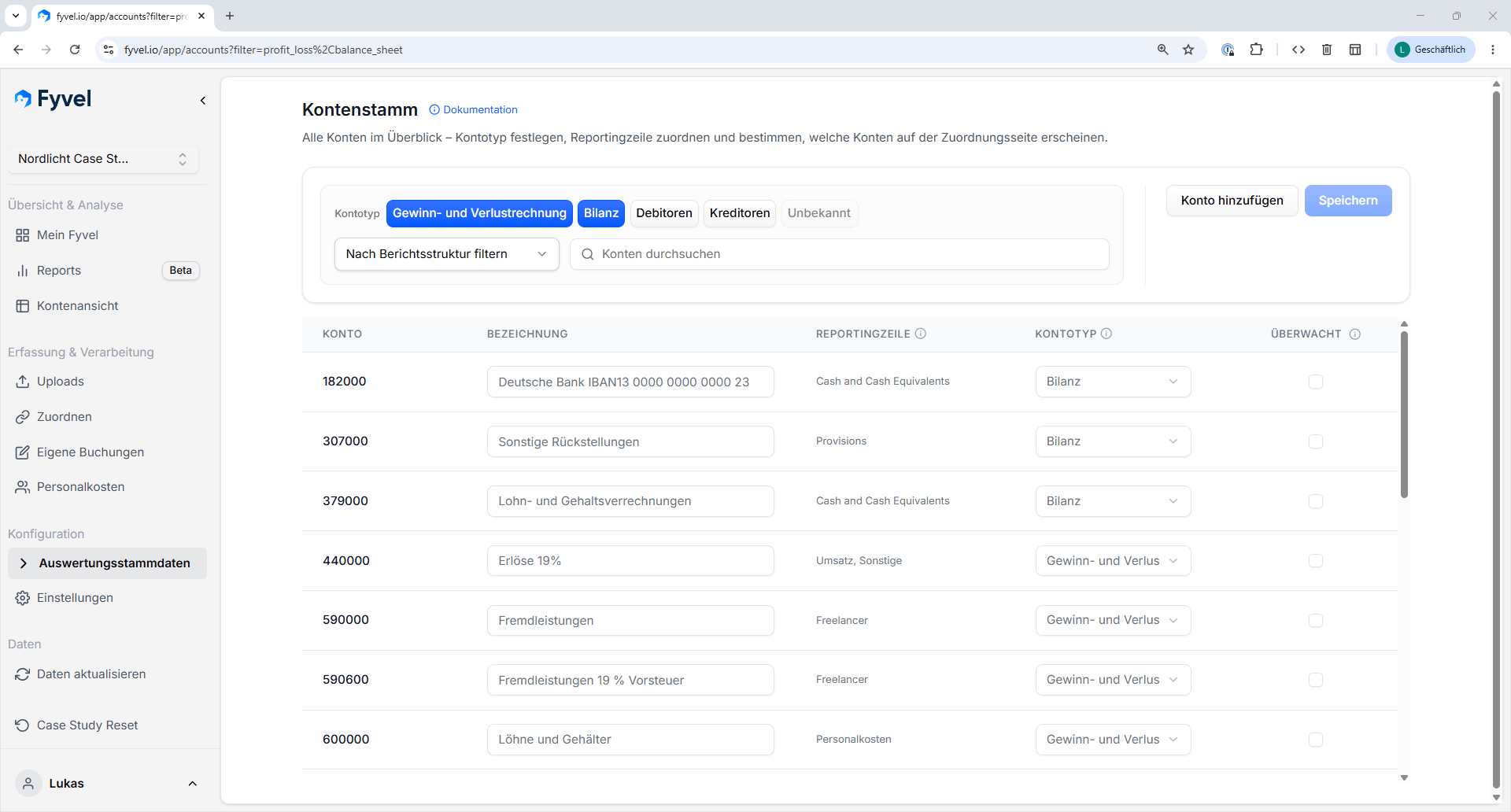
Chart of accounts with account type, reporting section, and tracked status
View accounts
The table shows, for each account:
Creditor and debtor accounts are hidden automatically.
Filter
- By account type — show only balance-sheet accounts, P&L accounts, or other types.
- By reporting section — filter to a specific section of your reporting structure.
Edit accounts
Click an account to change:- Account name — adjust the label.
- Account type — assign the type (balance sheet, P&L, debtors, creditors).
- Tracked status — decide whether bookings on this account should appear in the mapping workflow.
- Reporting section — assign the account to a section of your reporting structure.
Create accounts
Use “Add account” to add new accounts. Enter the account number, name, and type.What does “tracked” mean?
The tracked status decides whether bookings on an account appear on the Mapping page. Accounts you do not want in reporting (for example clearing accounts) can be marked as not tracked. On a tracked account you can still ignore individual bookings on the Mapping page. That hides only that booking, not the whole account. Example: A company wants full transparency on freelancer and consulting costs. Accounts 6825, 6303, 5900, and 5906 (SKR04) are therefore set to tracked. All bookings on those accounts then appear under Mapping and can be assigned categories such as “SEO agency” or “Tax advisory | payroll”.Notes
- Accounts are created automatically on upload when they appear in the accounting data but do not yet exist in the chart of accounts.
- New accounts that are not classified yet are marked with a yellow exclamation mark. A badge in the sidebar shows how many new accounts there are.
- Review these regularly and assign a type and a reporting section.