

Connect Claude
This guide is for Claude on claude.ai (Settings → Connectors → Add custom connector). For Claude Desktop and other MCP clients, use the same rules as in Setup & authentication: endpointhttps://www.fyvel.io/mcp and a bearer token.
Create an MCP credential in Fyvel first and copy the token. It is shown only once and starts with
fyv_mcp_. It is not the API key for Excel or Google Sheets.Add the connector
In Claude, open Settings → Connectors → Add custom connector and fill in the fields as in the screenshot (red markers 1–4):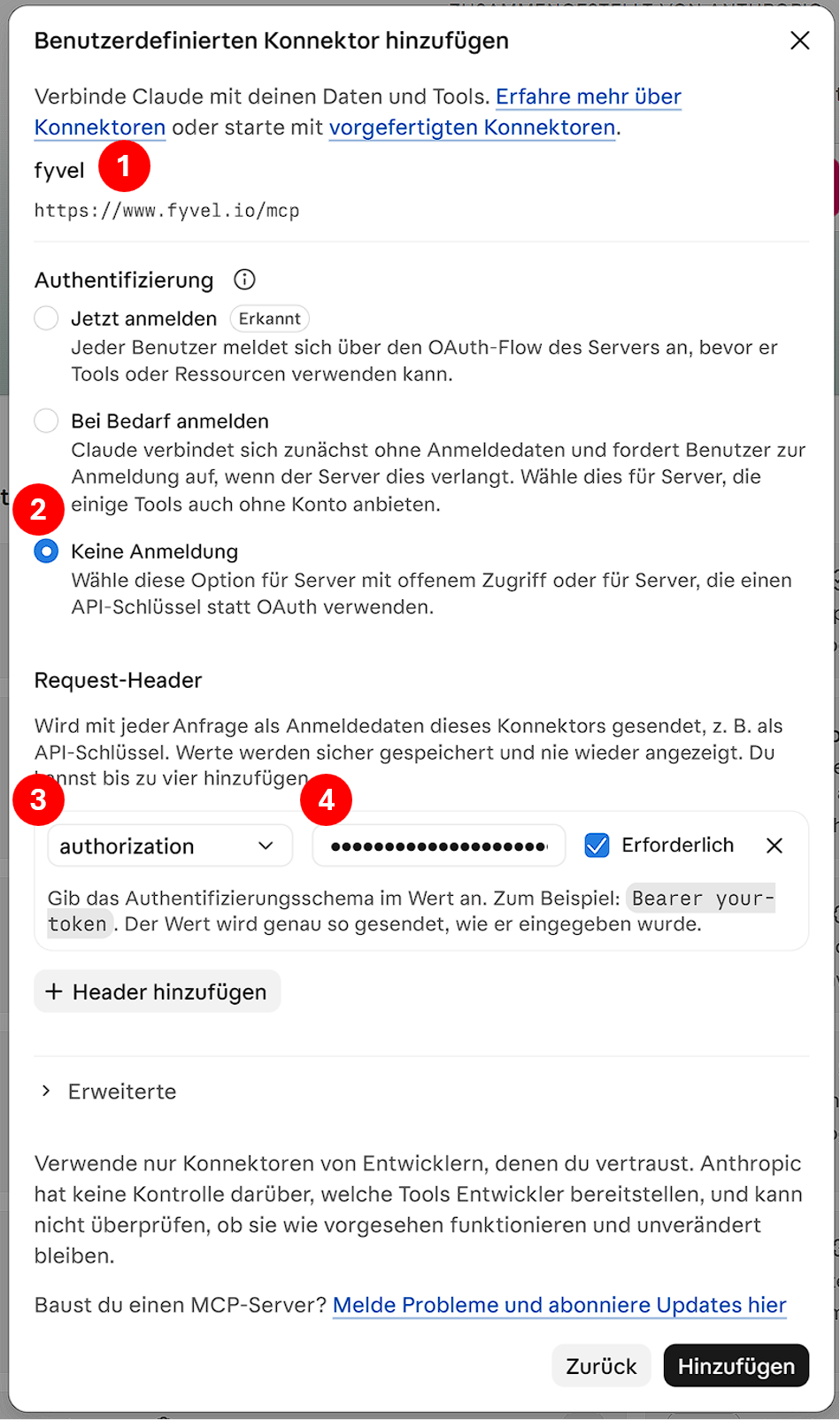
Custom connector for Fyvel in Claude
Click Add. The connector should appear in your connector list.
First test
- Start a chat with the fyvel connector enabled.
- Ask Claude to call
list_companies. - Pick the right
companyUuidfor further tools — see Companies & scoping.
Rotate the token
When you create a new MCP credential in Fyvel, existing MCP tokens for that organisation are revoked. Edit the connector and update the Authorization header with the newBearer value.
Next
- Setup & authentication — endpoint, credentials, scope rules
- MCP overview — available tool groups
- Prompt templates on fyvel.io