> ## Documentation Index
> Fetch the complete documentation index at: https://docs.fyvel.io/llms.txt
> Use this file to discover all available pages before exploring further.
# Personnel costs
> Split employee costs across cost centers after the fact
The Personnel costs page lets you split employee costs across cost centers after the fact. That is useful when an employee works for several departments, but payroll posts everything to a single account.
### Month view (default)
The page is organised by **month**:
* **Left bar:** every captured month with a status (Ready, Open, Empty). Here you upload new months or enter them manually.
* **Main area:** the employee table for the selected month: amount and allocation to a cost center.
After an upload you land automatically in the month you imported, so you can fill in missing allocations.
### Overview (matrix)
On the **Overview** tab you still see the matrix of all employees × months, which helps when you compare several periods. Click a cell to edit the allocation.
Export a CSV from DATEV Unternehmen Online
Personnel-cost data for Fyvel comes from DATEV Unternehmen Online. Each month, export the **"Personalkostenübersicht"** (personnel cost overview) report as a CSV file.
#### Prerequisite: enable HR reports
Make sure that in DATEV Unternehmen Online, the menu at the top right (**Meine Anwendungen** / My applications) shows **"Auswertungen Personalwirtschaft"** (HR reports).
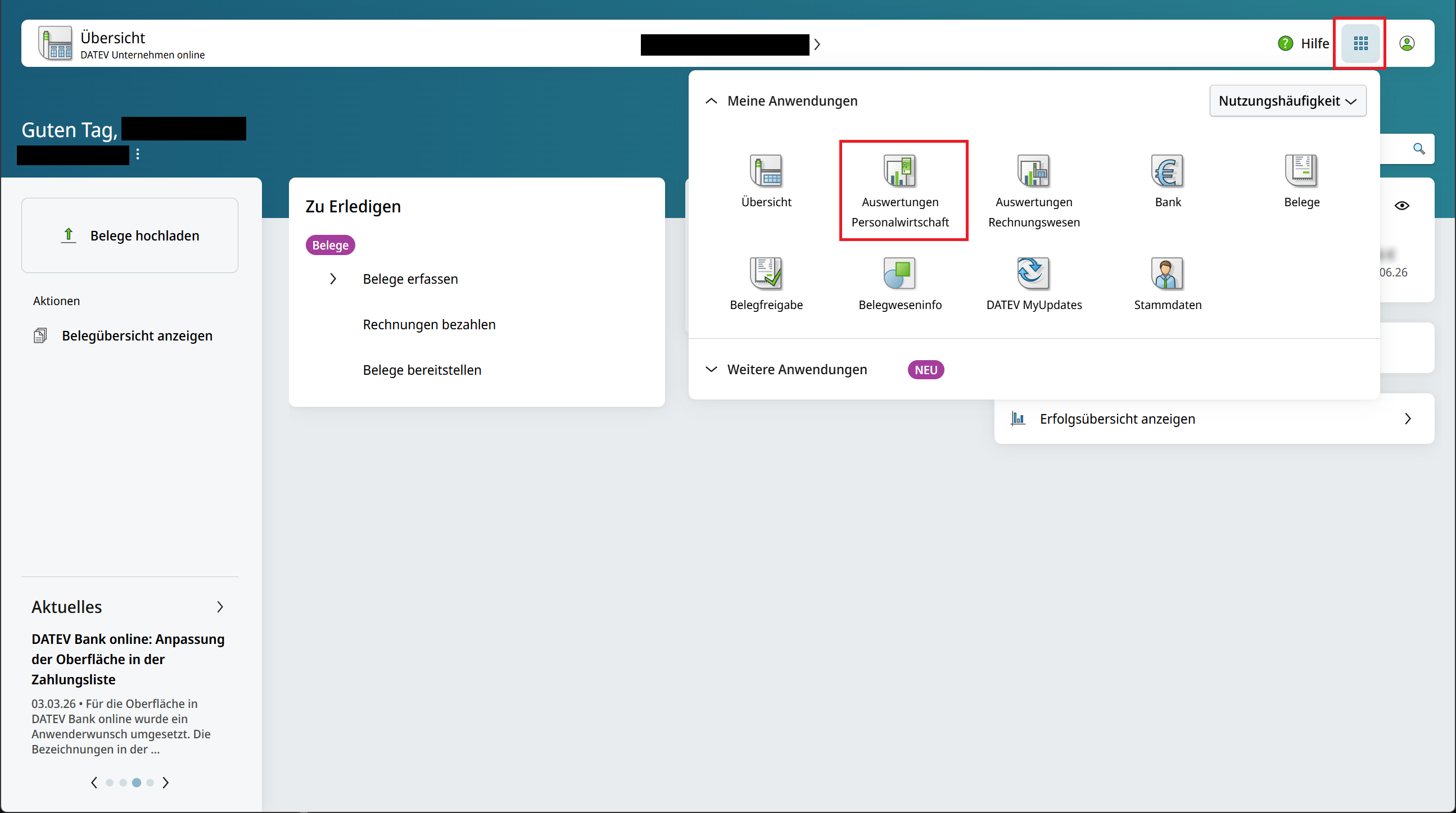 If the menu item is missing, talk to your tax advisor and ask them to enable it. Phrase the request roughly like this: you want to view the **"Personalkostenübersicht"** report as CSV each month, and it should be provided in DATEV Unternehmen Online.
#### Download the personnel cost overview as CSV
Once **Auswertungen Personalwirtschaft** is available:
1. Open **Auswertungen Personalwirtschaft** from the menu at the top right.
2. Switch to the **Datenexport** (data export) tab.
3. Choose the **month** you want to capture in Fyvel.
4. In the table, click the **Personalkostenübersicht** row.
5. On the right, under **CSV-Datei**, download the file.
If the menu item is missing, talk to your tax advisor and ask them to enable it. Phrase the request roughly like this: you want to view the **"Personalkostenübersicht"** report as CSV each month, and it should be provided in DATEV Unternehmen Online.
#### Download the personnel cost overview as CSV
Once **Auswertungen Personalwirtschaft** is available:
1. Open **Auswertungen Personalwirtschaft** from the menu at the top right.
2. Switch to the **Datenexport** (data export) tab.
3. Choose the **month** you want to capture in Fyvel.
4. In the table, click the **Personalkostenübersicht** row.
5. On the right, under **CSV-Datei**, download the file.
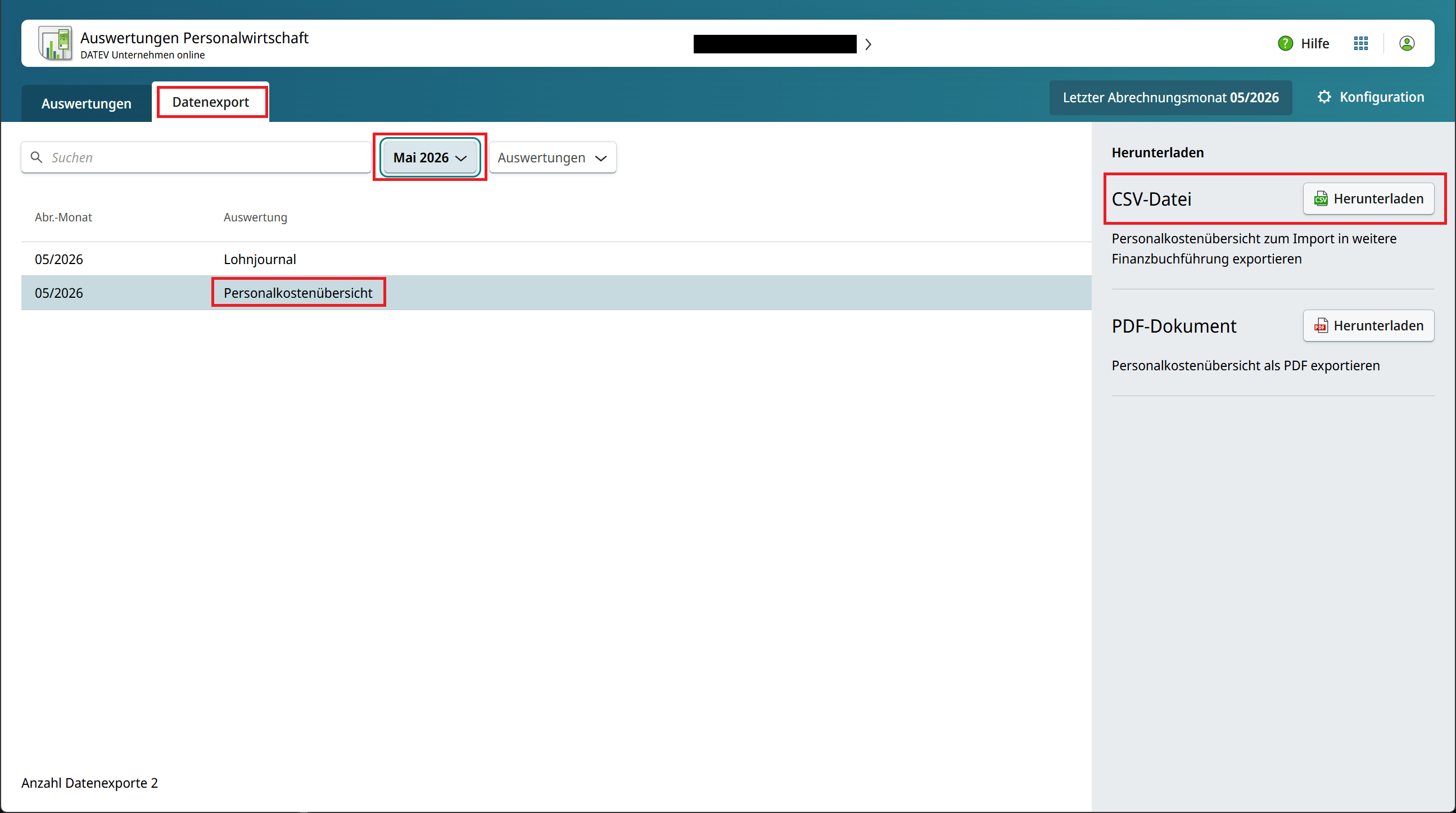 You then upload the downloaded CSV file in Fyvel (see the next section).
### Upload month data
On the Personnel costs page, click **Upload month** (in the month bar or in the empty state) to import the exported CSV file. The upload has three steps:
1. **Choose a file:** upload the personnel cost overview CSV from DATEV.
2. **Map columns:** map the columns of your file to the Fyvel fields (employee number, name, amount).
3. **Review & confirm:** check the detected data and confirm the import.
### Define the cost-center allocation
In the month view you edit the allocation via **Edit allocation** (pencil icon) on the row:
1. A side panel opens with the monthly amount.
2. Add rows. Each row is a **cost center** (numeric code) and a **percentage**.
3. The percentages must add up to exactly **100%**.
4. Click "Save".
**Example:** An employee with €5,000 of personnel costs works 60% for department A (cost center 5) and 40% for department B (cost center 8):
| Cost center | Percent |
| - | - |
| 5 | 60% |
| 8 | 40% |
Fyvel then generates the matching reclassification bookings automatically.
### Default allocation
For each employee you can store a **default allocation**. Click **Default allocation** (pencil icon next to the name) on the row, or the employee name in the overview.
### Delete an employee
An employee can be deleted when **no month** has personnel costs for them (Delete button on the row, or **Delete employee** in the default dialog). If the employee already has month data, delete is not available.
When you create a new employee, you can set the default allocation immediately afterwards.
### Set a default for several employees
1. Select employees in the table with the checkboxes (the header selects every visible row).
2. Click **Set default cost center**.
3. Set the cost-center split and save (it applies to every selected employee).
Existing default allocations are overwritten on save (with a confirmation).
When you save a default allocation (for one employee or for several), it is applied automatically to every month that has an amount but no allocation. Months that are already allocated stay unchanged.
### Automatic booking generation
When you save an allocation, Fyvel generates bookings automatically:
* A **reduction booking** on the cost account (the total amount is posted out)
* **Allocation bookings** on the clearing account for each cost center (the proportional amounts)
You configure the accounts and posting texts in company settings under "Personnel costs" (see the Company settings page).
### Filter
In the month view:
* **Search employees:** employee number or name
* **Filter by default cost center:** only employees whose default allocation contains a specific cost center
* **Missing allocations only:** only rows without an allocation in the active month
### Delete a month
From the menu (⋯) next to a month in the left bar you can remove all personnel-cost data and the related bookings for that month.
### Prerequisite
Before allocations flow into reporting, the personnel-cost accounts must be configured in company settings:
* **Cost account:** the account the personnel costs were originally posted to
* **Clearing account:** the account the reclassification bookings run through
* **Posting texts:** texts for the automatically generated bookings (with and without a cost center)
***
This documentation is built and hosted on [Mintlify](https://mintlify.com), a developer documentation platform.
You then upload the downloaded CSV file in Fyvel (see the next section).
### Upload month data
On the Personnel costs page, click **Upload month** (in the month bar or in the empty state) to import the exported CSV file. The upload has three steps:
1. **Choose a file:** upload the personnel cost overview CSV from DATEV.
2. **Map columns:** map the columns of your file to the Fyvel fields (employee number, name, amount).
3. **Review & confirm:** check the detected data and confirm the import.
### Define the cost-center allocation
In the month view you edit the allocation via **Edit allocation** (pencil icon) on the row:
1. A side panel opens with the monthly amount.
2. Add rows. Each row is a **cost center** (numeric code) and a **percentage**.
3. The percentages must add up to exactly **100%**.
4. Click "Save".
**Example:** An employee with €5,000 of personnel costs works 60% for department A (cost center 5) and 40% for department B (cost center 8):
| Cost center | Percent |
| - | - |
| 5 | 60% |
| 8 | 40% |
Fyvel then generates the matching reclassification bookings automatically.
### Default allocation
For each employee you can store a **default allocation**. Click **Default allocation** (pencil icon next to the name) on the row, or the employee name in the overview.
### Delete an employee
An employee can be deleted when **no month** has personnel costs for them (Delete button on the row, or **Delete employee** in the default dialog). If the employee already has month data, delete is not available.
When you create a new employee, you can set the default allocation immediately afterwards.
### Set a default for several employees
1. Select employees in the table with the checkboxes (the header selects every visible row).
2. Click **Set default cost center**.
3. Set the cost-center split and save (it applies to every selected employee).
Existing default allocations are overwritten on save (with a confirmation).
When you save a default allocation (for one employee or for several), it is applied automatically to every month that has an amount but no allocation. Months that are already allocated stay unchanged.
### Automatic booking generation
When you save an allocation, Fyvel generates bookings automatically:
* A **reduction booking** on the cost account (the total amount is posted out)
* **Allocation bookings** on the clearing account for each cost center (the proportional amounts)
You configure the accounts and posting texts in company settings under "Personnel costs" (see the Company settings page).
### Filter
In the month view:
* **Search employees:** employee number or name
* **Filter by default cost center:** only employees whose default allocation contains a specific cost center
* **Missing allocations only:** only rows without an allocation in the active month
### Delete a month
From the menu (⋯) next to a month in the left bar you can remove all personnel-cost data and the related bookings for that month.
### Prerequisite
Before allocations flow into reporting, the personnel-cost accounts must be configured in company settings:
* **Cost account:** the account the personnel costs were originally posted to
* **Clearing account:** the account the reclassification bookings run through
* **Posting texts:** texts for the automatically generated bookings (with and without a cost center)
***
This documentation is built and hosted on [Mintlify](https://mintlify.com), a developer documentation platform.