> ## Documentation Index
> Fetch the complete documentation index at: https://docs.fyvel.io/llms.txt
> Use this file to discover all available pages before exploring further.
# Manual entries
> Create manual transactions for corrections and additions
With manual entries you can create transactions that do not come from your accounting export. That is useful for corrections, reclassifications, or additions you want to make directly in Fyvel.
### When manual entries make sense
* **Correction bookings** — when a booking is missing or wrong in the accounts and you want to correct it in your reporting.
* **Additional bookings** — for items that are not in the accounts yet (for example accruals for internal reporting).
* **Reclassifications** — when you want to move amounts between accounts without changing the accounts.
### How to create manual entries
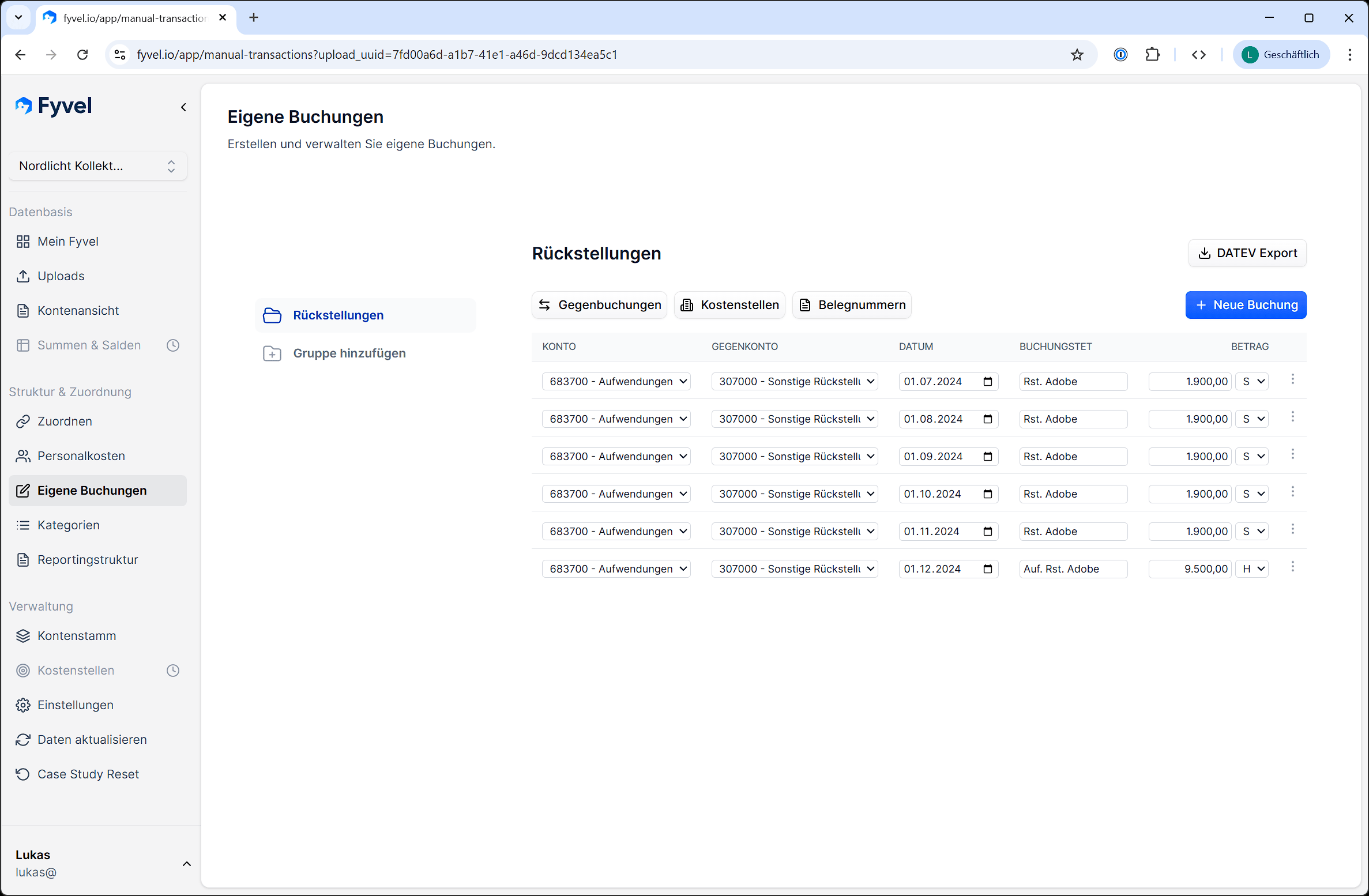
1. Go to the "Manual entries" page.
2. Choose an existing manual upload or create a new one.
3. Create a booking with:
| Field | Description |
| - | - |
| **Account** | Choose from your chart of accounts |
| **Offset account** | Choose the offset account from your chart of accounts |
| **Amount** | Debit or credit amount |
| **Date** | Booking date |
| **Posting text** | Description of the booking |
 ### Import a CSV
Into a booking group you can upload several bookings at once from a CSV file:
1. Choose the **import icon** next to "New booking".
2. Download the template, or use your own file with the same columns.
3. Review the preview (notes about missing account numbers or invalid amounts).
4. Click **Apply to table**, fill in missing fields in the table, and save with **Save all**.
The CSV is **not** saved automatically. Each row may have exactly one amount in **debit** (`debit_amount`) or **credit** (`credit_amount`).
| Column | Description |
| - | - |
| `account_number` | Account number (account) |
| `offset_account_number` | Offset account number |
| `date` | Booking date (`YYYY-MM-DD` or `DD.MM.YYYY`) |
| `debit_amount` | Debit amount (optional if credit is set) |
| `credit_amount` | Credit amount (optional if debit is set) |
| `posting_text` | Posting text (optional) |
| `document_number` | Document number (optional) |
| `cost_center` | Cost center (optional) |
Separator: semicolon or comma. At most 100 data rows per file. German column headers (for example `Konto`, `Gegenkonto`, `Datum`, `Soll`, `Haben`) are recognised as well.
### Organised in uploads
Manual entries are grouped in "manual uploads". That helps you keep track — for example one upload per month or per topic.
### Note
Manual entries appear in every other view (account view, mapping, dashboard) the same way as imported bookings. You can assign them categories and include them in your reporting structure.
***
This documentation is built and hosted on [Mintlify](https://mintlify.com), a developer documentation platform.
### Import a CSV
Into a booking group you can upload several bookings at once from a CSV file:
1. Choose the **import icon** next to "New booking".
2. Download the template, or use your own file with the same columns.
3. Review the preview (notes about missing account numbers or invalid amounts).
4. Click **Apply to table**, fill in missing fields in the table, and save with **Save all**.
The CSV is **not** saved automatically. Each row may have exactly one amount in **debit** (`debit_amount`) or **credit** (`credit_amount`).
| Column | Description |
| - | - |
| `account_number` | Account number (account) |
| `offset_account_number` | Offset account number |
| `date` | Booking date (`YYYY-MM-DD` or `DD.MM.YYYY`) |
| `debit_amount` | Debit amount (optional if credit is set) |
| `credit_amount` | Credit amount (optional if debit is set) |
| `posting_text` | Posting text (optional) |
| `document_number` | Document number (optional) |
| `cost_center` | Cost center (optional) |
Separator: semicolon or comma. At most 100 data rows per file. German column headers (for example `Konto`, `Gegenkonto`, `Datum`, `Soll`, `Haben`) are recognised as well.
### Organised in uploads
Manual entries are grouped in "manual uploads". That helps you keep track — for example one upload per month or per topic.
### Note
Manual entries appear in every other view (account view, mapping, dashboard) the same way as imported bookings. You can assign them categories and include them in your reporting structure.
***
This documentation is built and hosted on [Mintlify](https://mintlify.com), a developer documentation platform.