> ## Documentation Index
> Fetch the complete documentation index at: https://docs.fyvel.io/llms.txt
> Use this file to discover all available pages before exploring further.
# Xero
> Export General Ledger Detail from Xero as Excel and upload it to Fyvel
### Overview
This page describes the import from **Xero**: you export the **General Ledger Detail** report as an Excel file and upload it to Fyvel.
An overview of every import path is on [Uploads](/en/documentation/getting-started/uploads).
Each upload fully replaces the previous Xero state of this company. The export must therefore cover the entire period you want to keep in Fyvel — not only the latest month. Categories you already assigned are kept, as long as the booking is in the export again.
### Open the report
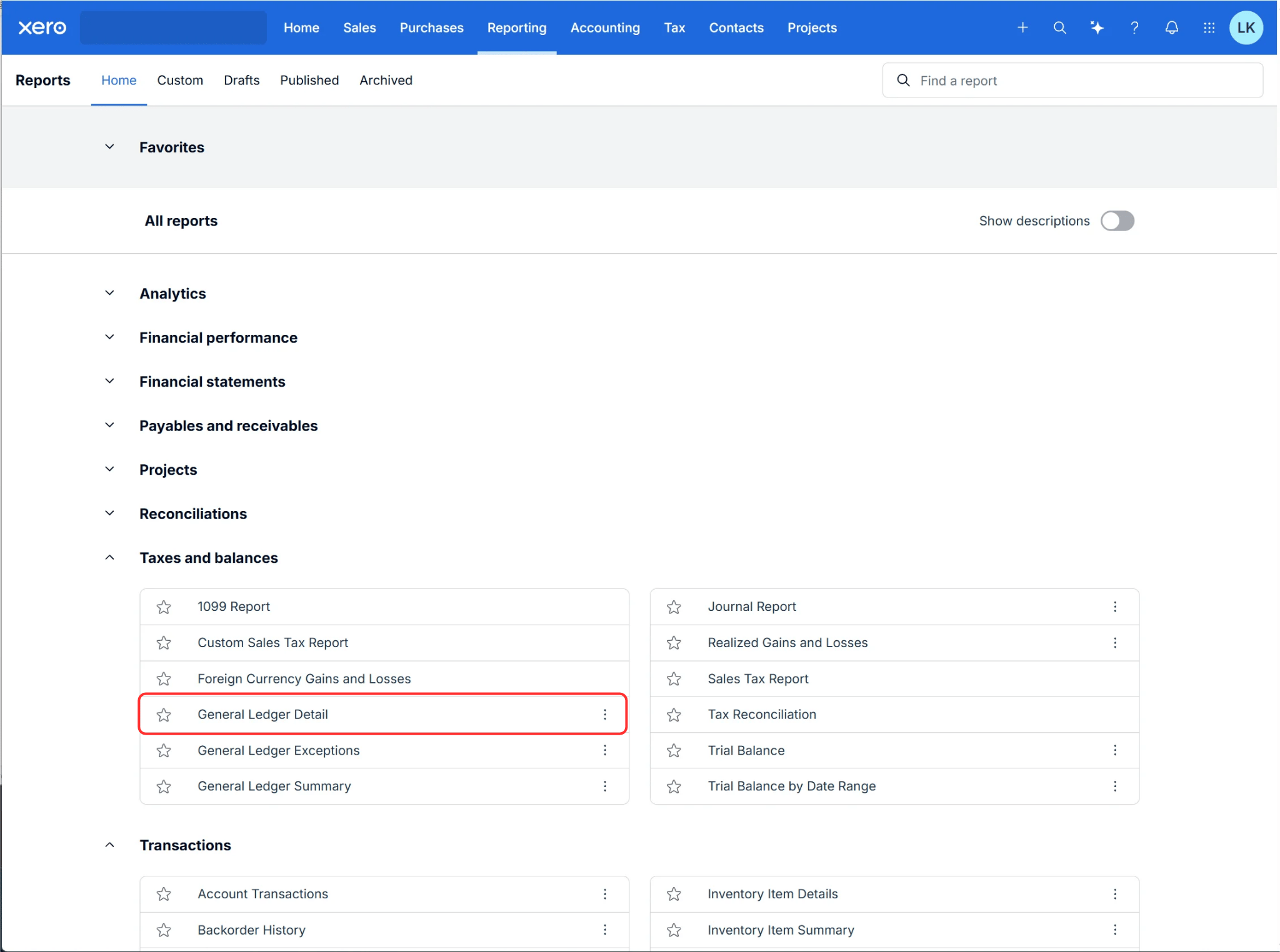
1. In Xero, open **Reporting**.
2. Under **Taxes and balances**, choose **General Ledger Detail**.
 ### Select all accounts
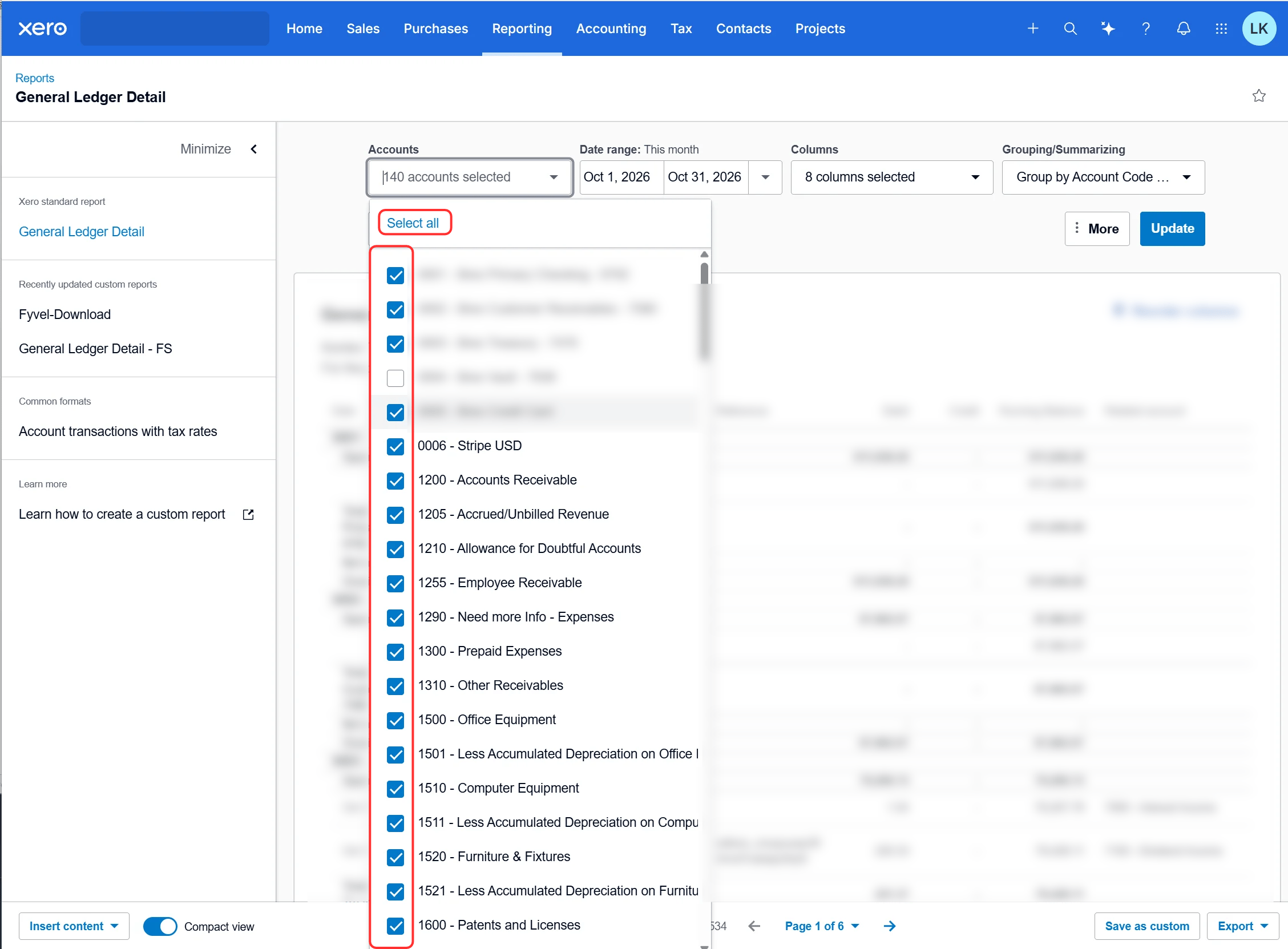
Under **Accounts**, click **Select all**. Every account must be in the export. If an account is missing, the bookings do not balance and Fyvel rejects the file.
### Select all accounts
Under **Accounts**, click **Select all**. Every account must be in the export. If an account is missing, the bookings do not balance and Fyvel rejects the file.
 ### Set the date range
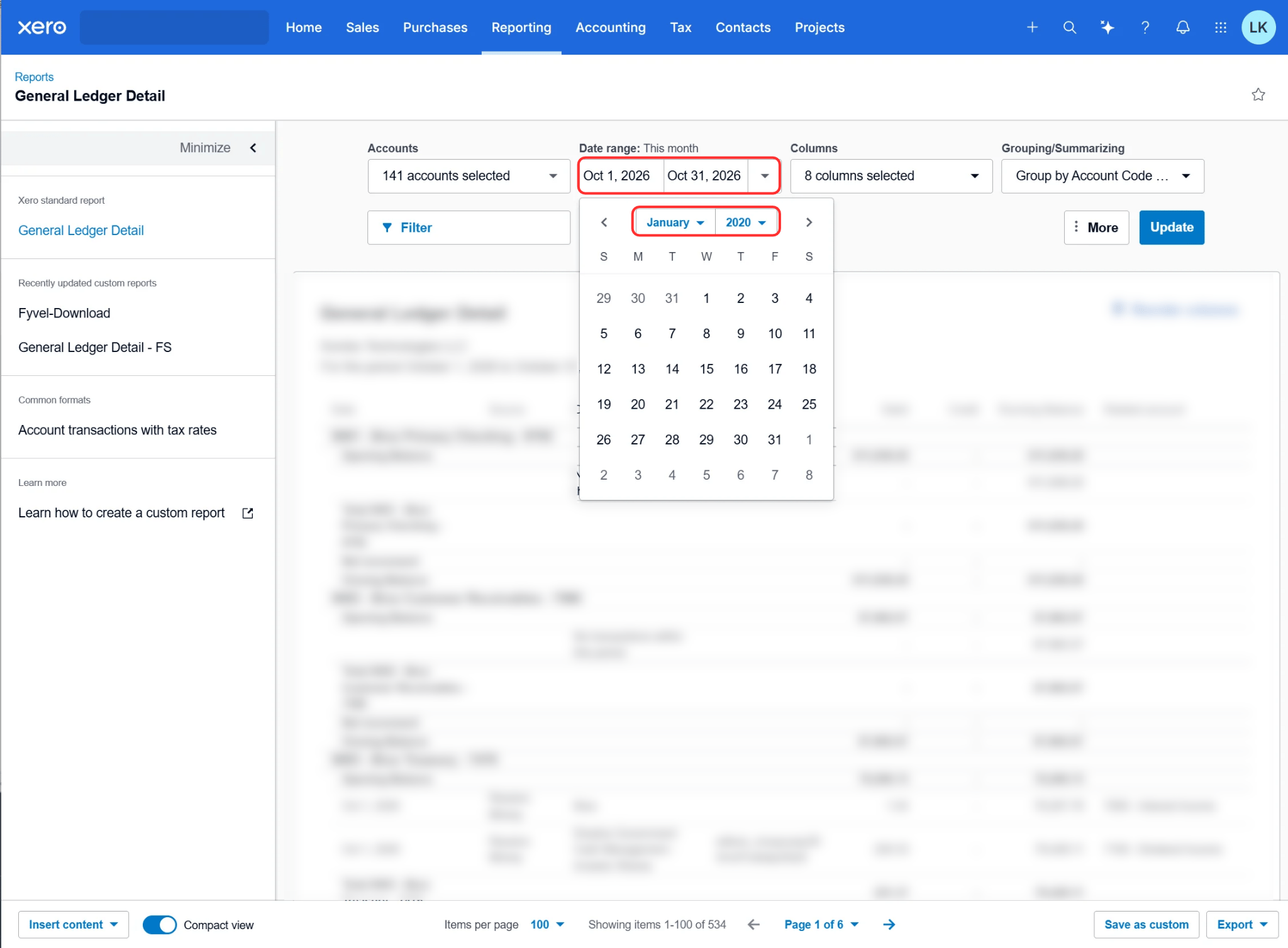
Under **Date range**, choose the start and the end. Take the first month you want to report in Fyvel through the current month.
After the change, click **Update** so the report shows the new range.
### Set the date range
Under **Date range**, choose the start and the end. Take the first month you want to report in Fyvel through the current month.
After the change, click **Update** so the report shows the new range.
 ### Columns
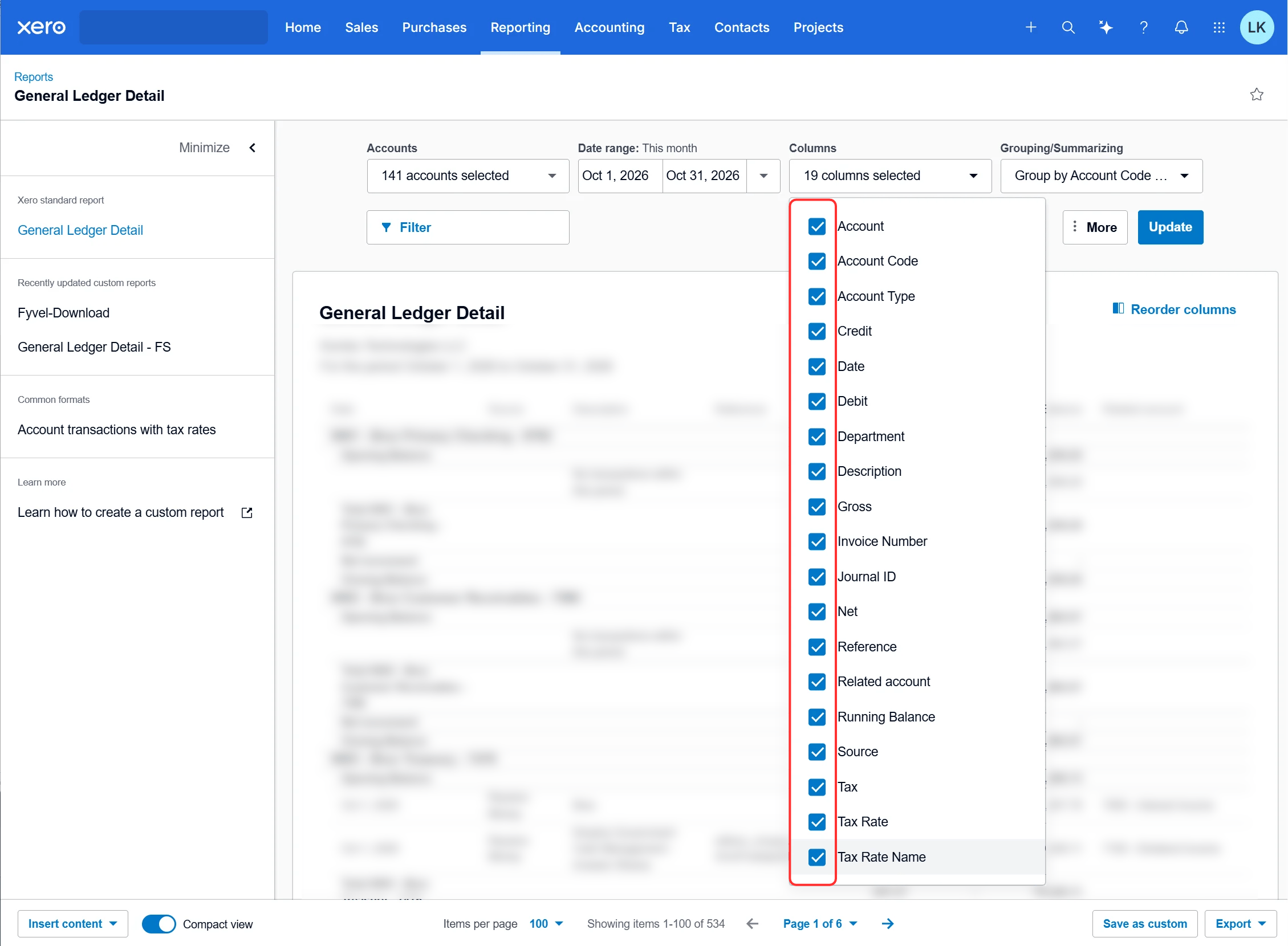
Under **Columns**, tick every column shown in the screenshot:
* Account, Account Code, Account Type
* Credit, Debit, Gross, Net
* Date, Description, Reference, Source
* Department
* Invoice Number, Journal ID, Related account
* Running Balance
* Tax, Tax Rate, Tax Rate Name
If one of these columns is missing, Fyvel cannot read the file. You need **Department** if you want to bring cost centers over from Xero.
### Columns
Under **Columns**, tick every column shown in the screenshot:
* Account, Account Code, Account Type
* Credit, Debit, Gross, Net
* Date, Description, Reference, Source
* Department
* Invoice Number, Journal ID, Related account
* Running Balance
* Tax, Tax Rate, Tax Rate Name
If one of these columns is missing, Fyvel cannot read the file. You need **Department** if you want to bring cost centers over from Xero.
 ### Do not group
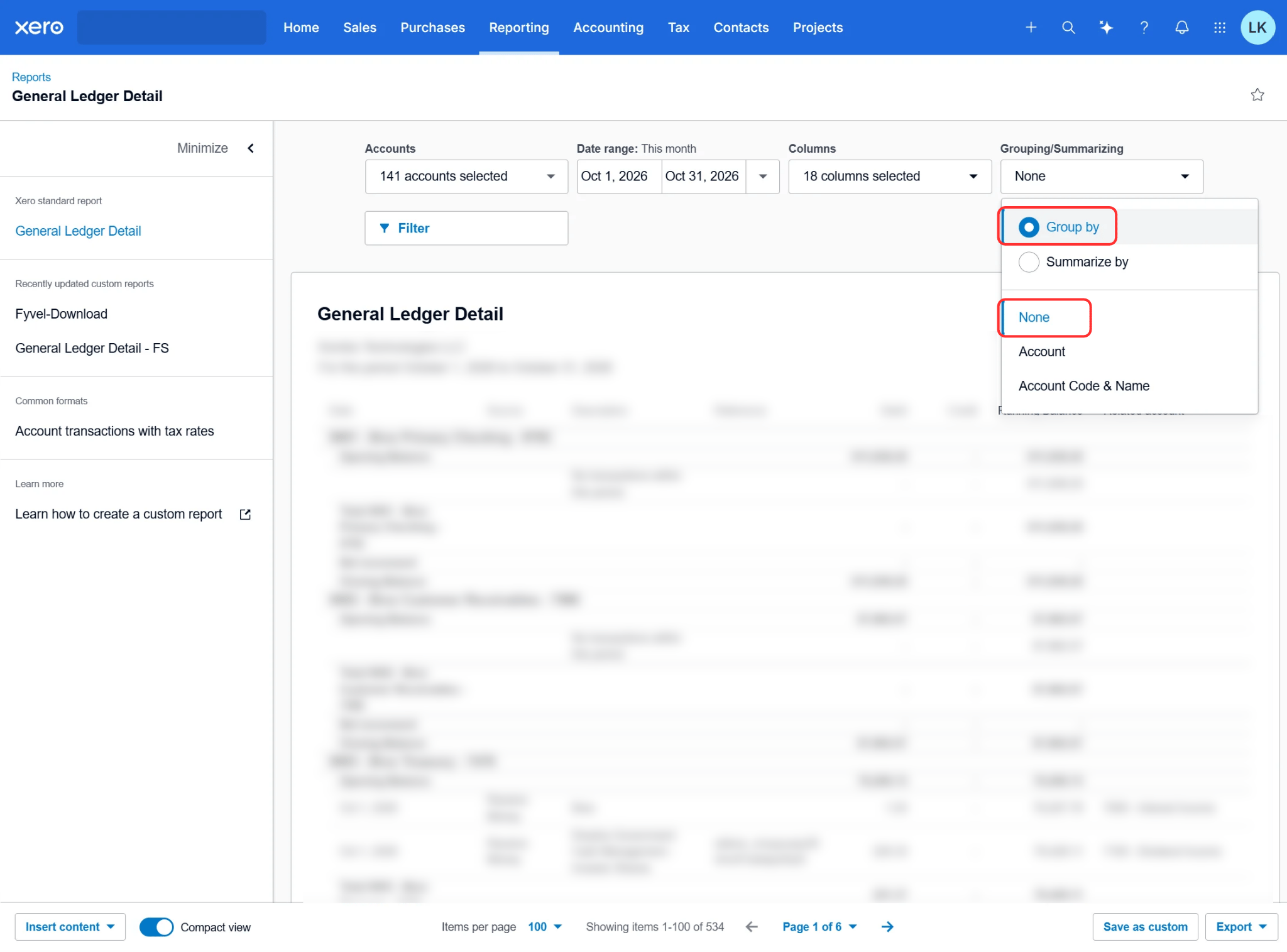
Under **Grouping/Summarizing**, **Group by** must be **None**. Not **Account** or **Account Code & Name**, and not **Summarize by**. Otherwise the file contains total rows instead of the individual bookings.
### Do not group
Under **Grouping/Summarizing**, **Group by** must be **None**. Not **Account** or **Account Code & Name**, and not **Summarize by**. Otherwise the file contains total rows instead of the individual bookings.
 ### Save as a custom report
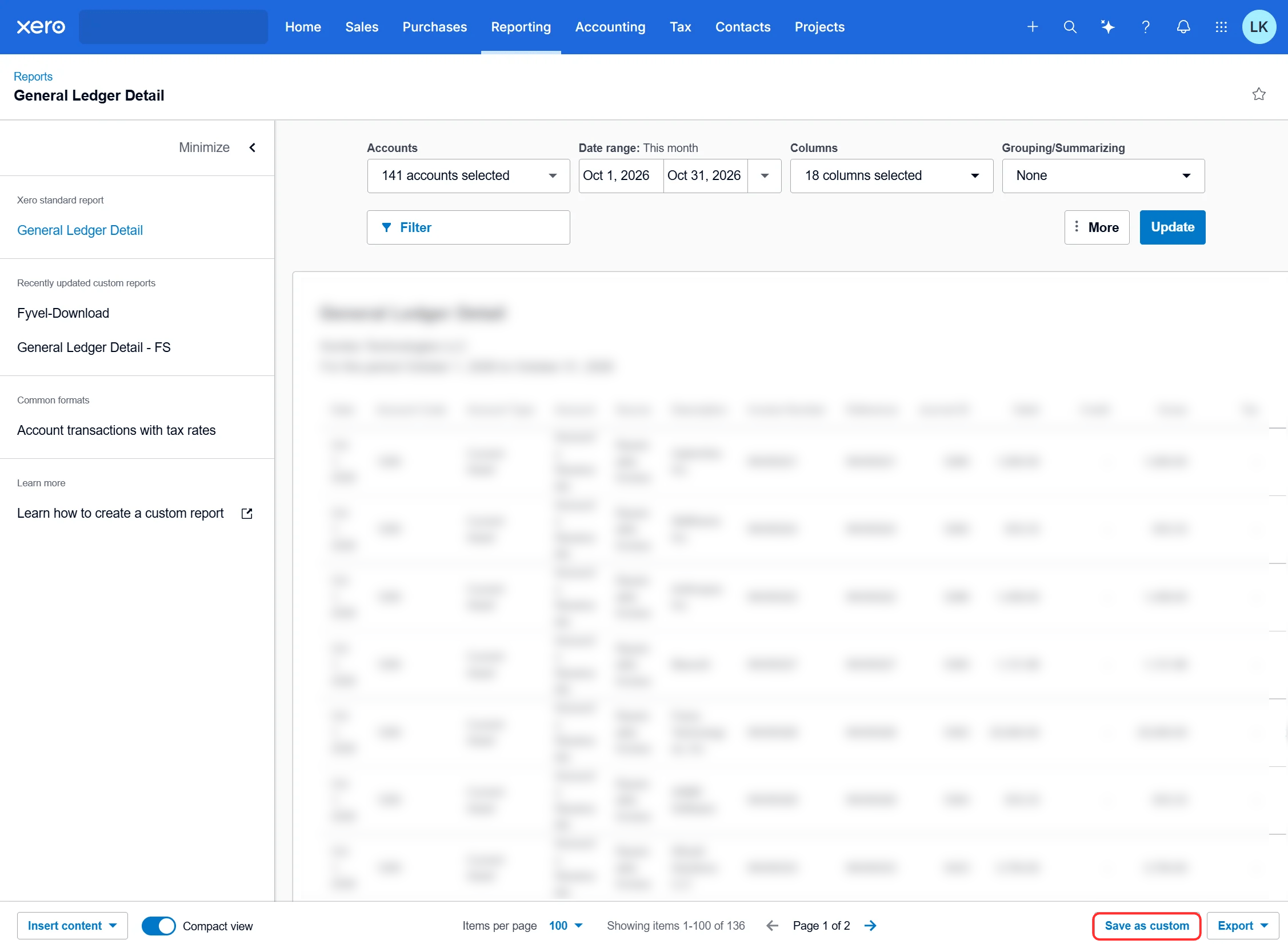
At the bottom right, click **Save as custom**. Next time you open this report, set only the date range again. You do not have to configure accounts, columns, and grouping once more.
### Save as a custom report
At the bottom right, click **Save as custom**. Next time you open this report, set only the date range again. You do not have to configure accounts, columns, and grouping once more.
 ### Download as Excel
1. Check that **Update** shows the correct date range on the report.
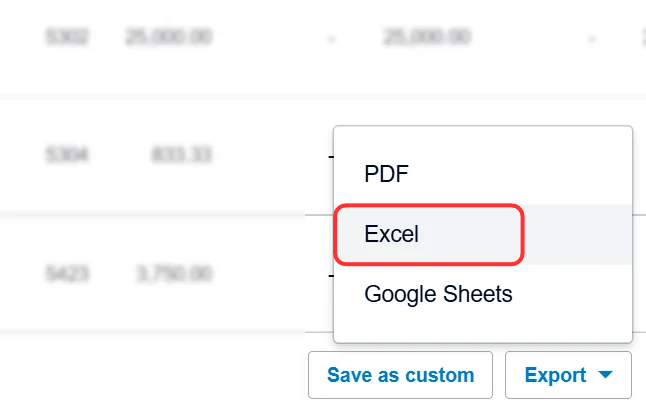
2. **Export** → **Excel**. Not PDF, and not Google Sheets.
The file extension is `.xlsx`. It is always exactly one file per upload.
### Download as Excel
1. Check that **Update** shows the correct date range on the report.
2. **Export** → **Excel**. Not PDF, and not Google Sheets.
The file extension is `.xlsx`. It is always exactly one file per upload.
 ### Upload in Fyvel
1. In Fyvel, open the **Uploads** page.
2. Drag the Excel file into the upload area.
3. Fyvel processes the file in the background. You see the status in the upload table.
The new upload replaces all previous Xero bookings of this company. Anything that is no longer in the file is gone from Fyvel afterwards.
### Cost centers
If the export contains a column with departments or tracking categories (in the screenshot, **Department**):
1. Upload the file once. Fyvel remembers the labels from that column.
2. Open **Company settings** → **Xero integration**.
3. Enter the column name as the **source column**, for example `Department`.
4. Map each label to a Fyvel cost center and save.
5. Upload the same file again. Only this second upload writes the cost centers onto the bookings.
Labels without a mapping come in without a cost center. The column must stay in the Excel export, otherwise the upload fails.
### If the upload fails
| What you see | What to check |
| - | - |
| The file is rejected because columns are missing | Under **Columns**, tick every column from the screenshot and export again. |
| Bookings do not balance | **Select all** for the accounts, and **Group by** set to **None**. |
| An account number is rejected | Account numbers in Xero may contain digits only. |
| Older months are missing in Fyvel | The export covers only a slice. Widen the date range and upload the file again. |
| Cost centers stay empty | Save the source column and the mapping, then upload the file once more. |
***
This documentation is built and hosted on [Mintlify](https://mintlify.com), a developer documentation platform.
### Upload in Fyvel
1. In Fyvel, open the **Uploads** page.
2. Drag the Excel file into the upload area.
3. Fyvel processes the file in the background. You see the status in the upload table.
The new upload replaces all previous Xero bookings of this company. Anything that is no longer in the file is gone from Fyvel afterwards.
### Cost centers
If the export contains a column with departments or tracking categories (in the screenshot, **Department**):
1. Upload the file once. Fyvel remembers the labels from that column.
2. Open **Company settings** → **Xero integration**.
3. Enter the column name as the **source column**, for example `Department`.
4. Map each label to a Fyvel cost center and save.
5. Upload the same file again. Only this second upload writes the cost centers onto the bookings.
Labels without a mapping come in without a cost center. The column must stay in the Excel export, otherwise the upload fails.
### If the upload fails
| What you see | What to check |
| - | - |
| The file is rejected because columns are missing | Under **Columns**, tick every column from the screenshot and export again. |
| Bookings do not balance | **Select all** for the accounts, and **Group by** set to **None**. |
| An account number is rejected | Account numbers in Xero may contain digits only. |
| Older months are missing in Fyvel | The export covers only a slice. Widen the date range and upload the file again. |
| Cost centers stay empty | Save the source column and the mapping, then upload the file once more. |
***
This documentation is built and hosted on [Mintlify](https://mintlify.com), a developer documentation platform.