> ## Documentation Index
> Fetch the complete documentation index at: https://docs.fyvel.io/llms.txt
> Use this file to discover all available pages before exploring further.
# Uploads
> Import paths at a glance, and how to choose the right one
Accounting data reaches Fyvel through **one** import path per company. Which path fits depends on your accounting software. This page is the overview. The steps are on the matching subpage.
### Which path fits?
| Import path | What you upload | Cadence | Fits when |
| - | - | - | - |
| [DATEV Unternehmen Online](/en/documentation/getting-started/datev-unternehmen-online) | Account-ledger export as CSV | monthly | you have your own access to DATEV Unternehmen Online |
| [DATEV GDPdU](/en/documentation/getting-started/datev-gdpdu) | Year package as ZIP | whenever you choose, for example monthly | you want to start without your own DATEV access |
| [DATEV Connect](/en/documentation/getting-started/datev-connect) | no file; a direct connection to the DATEV server (for example DATEV SmartIT) | whenever you choose, for example monthly | you book in-house with DATEV SmartIT, or your tax advisor can enable the interface |
| [Xero](/en/documentation/getting-started/xero) | General Ledger Detail as Excel | whenever you choose | you book in Xero |
Every path leads to the same result: structured transactions, accounts, and balances in Fyvel. They differ only in **how** the data arrives.
### Recommendation for getting started
If your books are in DATEV and you want to try Fyvel first, **GDPdU** is usually the fastest path:
* **You do not need your own DATEV access.** Not every company has DATEV Unternehmen Online enabled, and enabling it depends on the tax advisor.
* **GDPdU is a standardised format.** The export always contains the same set of files, so less can go wrong. With the account-ledger export, the wrong file often comes back: a PDF, the old view, a full-year view, or an export without creditor and debtor accounts.
* **No setup required.** DATEV Connect needs a technical activation. If that depends on your tax advisor, it takes several days. If you book yourself with **DATEV SmartIT**, Connect is usually usable within a day and is then a good choice from the start.
* **You get the history immediately.** One package covers a whole fiscal year, instead of month by month.
You can switch to another import path later. We do the switch for you (see below).
### DATEV Unternehmen Online
You export the account-ledger view monthly as CSV and upload the files by drag and drop. The export must come from the **German** DATEV interface and include **all accounts**. This path works best when you have your own access to DATEV Unternehmen Online, because then you can control the report settings directly.
Guide: [DATEV Unternehmen Online](/en/documentation/getting-started/datev-unternehmen-online)
### DATEV GDPdU
You upload a complete fiscal year as a ZIP file. The package comes from DATEV Kanzlei-Rechnungswesen (GDPdU export, also called "Vorabprüfung") and is usually provided by the tax advisor. Because the format is standardised, the request to the tax advisor is unambiguous and there is little room for the wrong export.
A package always contains the whole fiscal year. How often you request a new one is up to you: once for the history, or regularly, for example monthly for ongoing reporting. Each upload replaces that fiscal year with the new state.
Guide: [DATEV GDPdU](/en/documentation/getting-started/datev-gdpdu)
### DATEV Connect
Fyvel pulls fiscal years directly through the DATEV Connect interface from the DATEV server where your books run, for example **DATEV SmartIT** or a server at your tax advisor. There is no manual export. A refresh always covers a whole fiscal year, but you start it with a button as often as you want, for example monthly. In day-to-day use this is the most convenient path.
It requires a technical activation and an onboarding call. How long that takes depends on where your books live: as an **in-house bookkeeper with DATEV SmartIT**, activation is usually done within a day, sometimes immediately. If it goes through your tax advisor or an accounting-server provider, it usually takes several days.
Guide: [DATEV Connect](/en/documentation/getting-started/datev-connect)
### Xero
In Xero you export the **General Ledger Detail** report as Excel and upload one file. The export must include all accounts, be ungrouped, and cover the full period you want to keep in Fyvel. Each new upload replaces the previous Xero state of that company.
Guide: [Xero](/en/documentation/getting-started/xero)
### Other sources
* **Google Sheets sync** — for individually configured setups: instead of the drag-and-drop area you see a sync button that imports data from the linked Google Sheet. The URL is stored in [Company settings](/en/documentation/export-and-settings/company-settings).
* We agree other individual integrations together during onboarding.
### Set or change the import path
You choose the import path during onboarding. You cannot change it yourself afterwards. Write to [support@fyvel.io](mailto:support@fyvel.io) and we change the import path for your company in the backend. **DATEV Connect** also needs a technical setup, so we plan that switch together.
Tell us whether you have already imported data. Each import path replaces only **its own** uploads. If the same periods are then imported from a new source without removing the old uploads, bookings are counted twice. We clear the old uploads together with you.
### The Uploads page
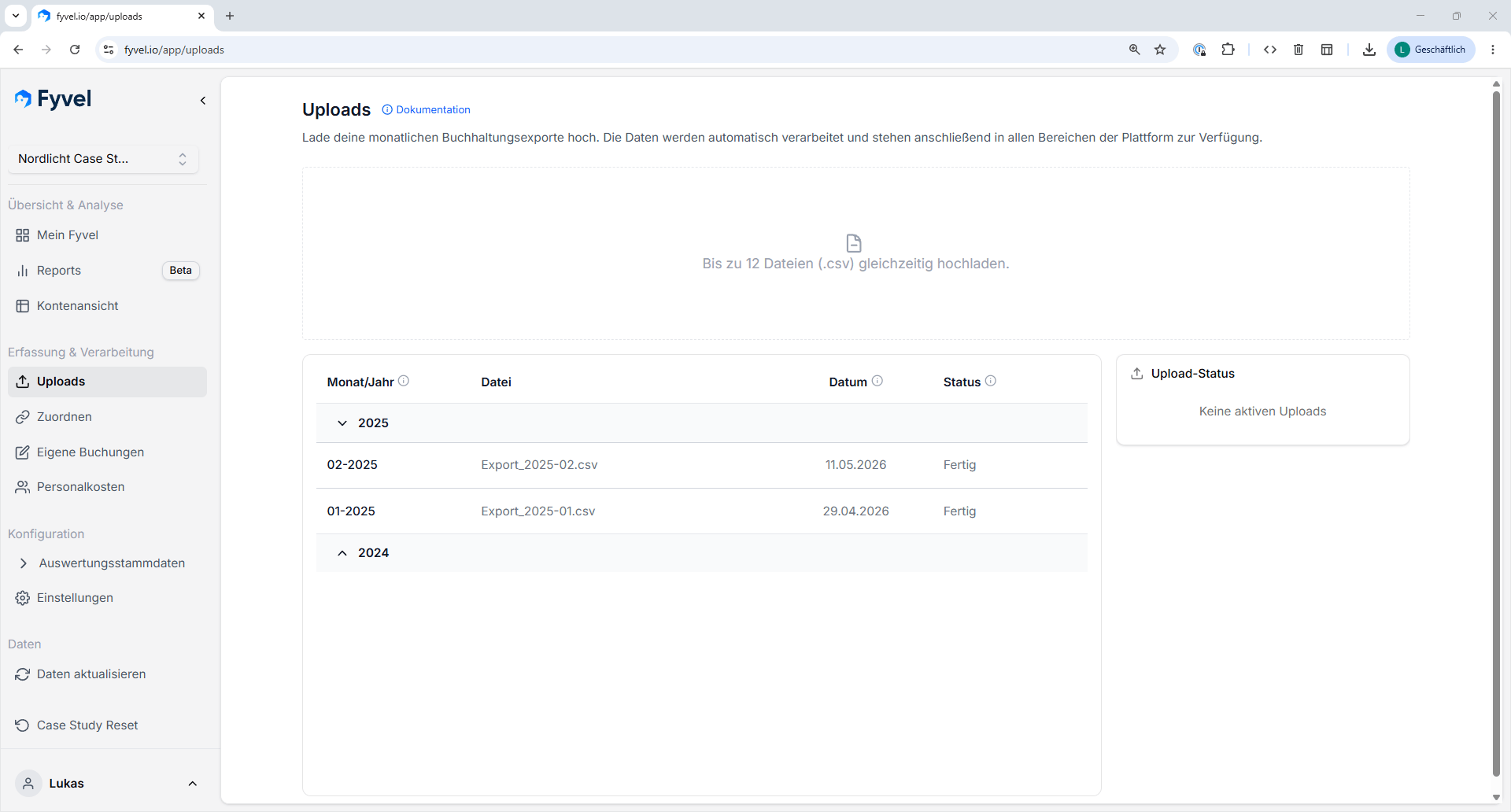 Whatever the import path, below the upload area you see a table of all previous uploads:
| Column | Description |
| - | - |
| **File name** | Name of the uploaded file |
| **Status** | Processing status (for example "completed") |
| **Export period** | The period the export covers |
| **Fiscal year** | The related fiscal year |
| **Transaction count** | How many bookings the upload contains |
### This applies to every import path
* Fyvel detects automatically which bookings are new and which were already there. **Existing mappings are kept.**
* Upload regularly so your reporting stays current.
* Retrospective bookings are normal. It is worth importing periods you already imported again.
* Before larger imports, create a **snapshot** if you want to trace what changed (see [Booking layers & snapshots](/en/documentation/working-with-fyvel/booking-layers-snapshots)). Fyvel reminds you at upload time.
* DATEV master data (client number, advisor number, chart of accounts, account number length) is used for validation during import. Check it in [Company settings](/en/documentation/export-and-settings/company-settings).
***
This documentation is built and hosted on [Mintlify](https://mintlify.com), a developer documentation platform.
Whatever the import path, below the upload area you see a table of all previous uploads:
| Column | Description |
| - | - |
| **File name** | Name of the uploaded file |
| **Status** | Processing status (for example "completed") |
| **Export period** | The period the export covers |
| **Fiscal year** | The related fiscal year |
| **Transaction count** | How many bookings the upload contains |
### This applies to every import path
* Fyvel detects automatically which bookings are new and which were already there. **Existing mappings are kept.**
* Upload regularly so your reporting stays current.
* Retrospective bookings are normal. It is worth importing periods you already imported again.
* Before larger imports, create a **snapshot** if you want to trace what changed (see [Booking layers & snapshots](/en/documentation/working-with-fyvel/booking-layers-snapshots)). Fyvel reminds you at upload time.
* DATEV master data (client number, advisor number, chart of accounts, account number length) is used for validation during import. Check it in [Company settings](/en/documentation/export-and-settings/company-settings).
***
This documentation is built and hosted on [Mintlify](https://mintlify.com), a developer documentation platform.