> ## Documentation Index
> Fetch the complete documentation index at: https://docs.fyvel.io/llms.txt
> Use this file to discover all available pages before exploring further.
# Reporting structure
> Build your own report logic for the P&L and balance sheet
The reporting structure defines how your accounts are grouped for management reporting. Instead of the standard tax layout, you build a structure that reflects how your company works.
 ### Layout
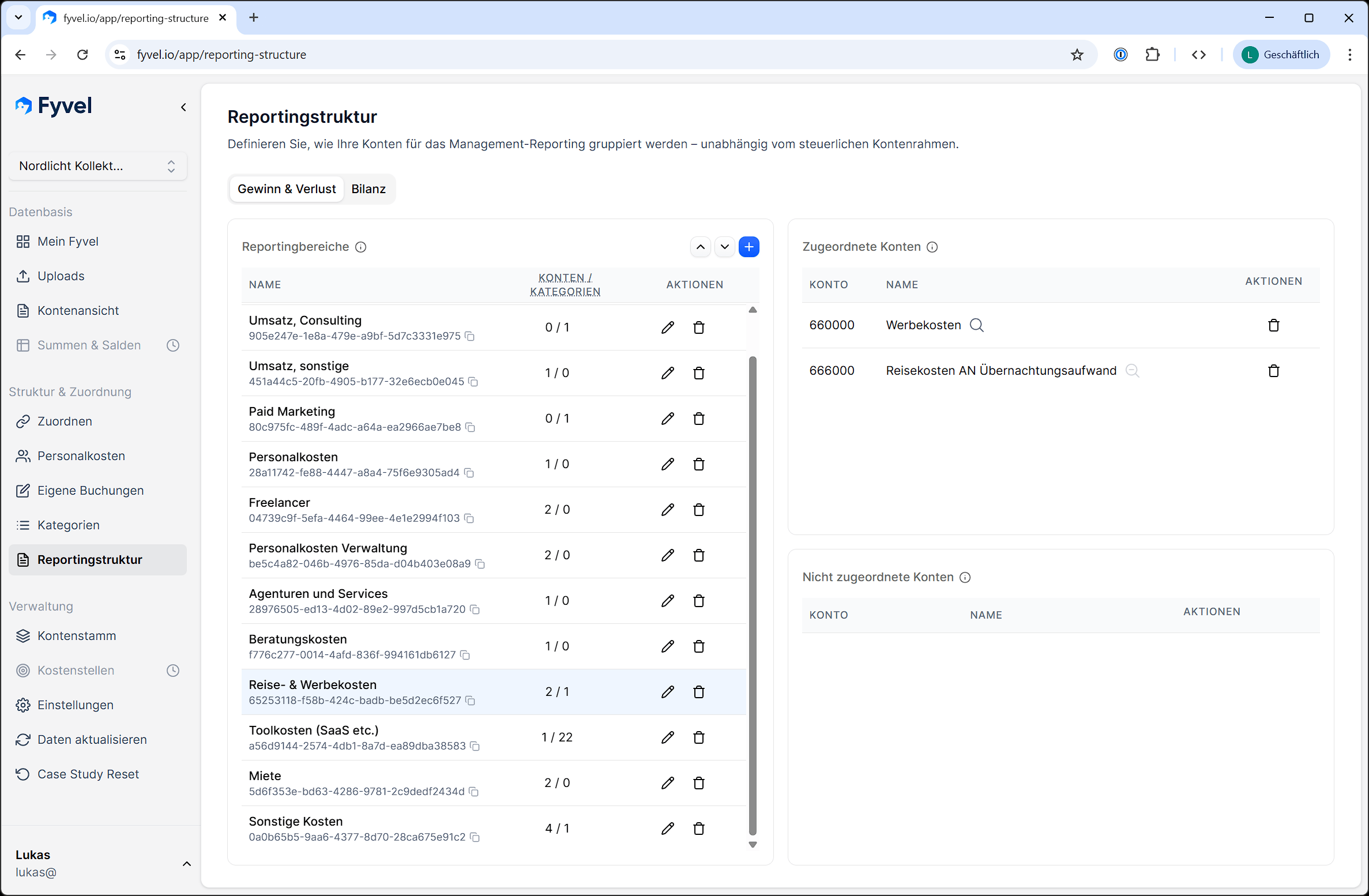
The reporting structure is split into two areas:
* **Profit and loss (P\&L)** — income and expense accounts
* **Balance sheet** — asset and liability accounts
Switch between them with the tabs.
### Manage reporting sections
#### Create sections
Create sections such as "Revenue", "Personnel costs", "Marketing", "IT infrastructure", or "Other operating expenses". Each section has an internal name and a display name.
#### Change the order
The order of the sections determines how they appear in reports and on the dashboard. Move sections up or down with the arrow buttons.
#### Delete sections
Sections you no longer need can be deleted. Assigned accounts are marked as unassigned again.
### Assign accounts
The page is split into two columns:
**Left column: reporting sections** — all sections of the active tab (P\&L or balance sheet). Select a section to see its accounts.
**Right column, top: assigned accounts** — every account assigned to the selected section. Click an account to remove it (it is then marked as unassigned).
**Right column, bottom: unassigned accounts** — every account of the active account type (P\&L or balance sheet) that is not assigned to a section yet. Click an account to assign it to the selected section.
### Warnings
A badge in the sidebar appears when accounts are not assigned to a reporting section yet. Review these regularly so your reports are complete.
### Tip
Start with a coarse structure (for example 5–10 sections) and refine it later. You can change the structure at any time. Existing mappings stay in place.
***
This documentation is built and hosted on [Mintlify](https://mintlify.com), a developer documentation platform.
### Layout
The reporting structure is split into two areas:
* **Profit and loss (P\&L)** — income and expense accounts
* **Balance sheet** — asset and liability accounts
Switch between them with the tabs.
### Manage reporting sections
#### Create sections
Create sections such as "Revenue", "Personnel costs", "Marketing", "IT infrastructure", or "Other operating expenses". Each section has an internal name and a display name.
#### Change the order
The order of the sections determines how they appear in reports and on the dashboard. Move sections up or down with the arrow buttons.
#### Delete sections
Sections you no longer need can be deleted. Assigned accounts are marked as unassigned again.
### Assign accounts
The page is split into two columns:
**Left column: reporting sections** — all sections of the active tab (P\&L or balance sheet). Select a section to see its accounts.
**Right column, top: assigned accounts** — every account assigned to the selected section. Click an account to remove it (it is then marked as unassigned).
**Right column, bottom: unassigned accounts** — every account of the active account type (P\&L or balance sheet) that is not assigned to a section yet. Click an account to assign it to the selected section.
### Warnings
A badge in the sidebar appears when accounts are not assigned to a reporting section yet. Review these regularly so your reports are complete.
### Tip
Start with a coarse structure (for example 5–10 sections) and refine it later. You can change the structure at any time. Existing mappings stay in place.
***
This documentation is built and hosted on [Mintlify](https://mintlify.com), a developer documentation platform.