> ## Documentation Index
> Fetch the complete documentation index at: https://docs.fyvel.io/llms.txt
> Use this file to discover all available pages before exploring further.
# Cost centers
> Create cost centers, name them, and use them in reporting
The Cost centers page is the central place for every cost center in your organisation. Here you give each numeric cost-center code a readable name and an optional description. Those names then appear everywhere in Fyvel where cost centers are shown: in categories, in the personnel-cost split, and in exports.
 ### What is a cost center?
A cost center is a numeric code that represents a department, a project, or a cost unit in your company. In accounting, cost centers assign bookings to specific areas.
In Fyvel you can:
* **Name cost centers** — give each code a readable label (for example code 5 → "Sales Berlin").
* **Store descriptions** — optionally document what a cost center is for.
* **Use names across the organisation** — the stored names appear automatically in categories, personnel-cost splits, and filters.
### Create a cost center
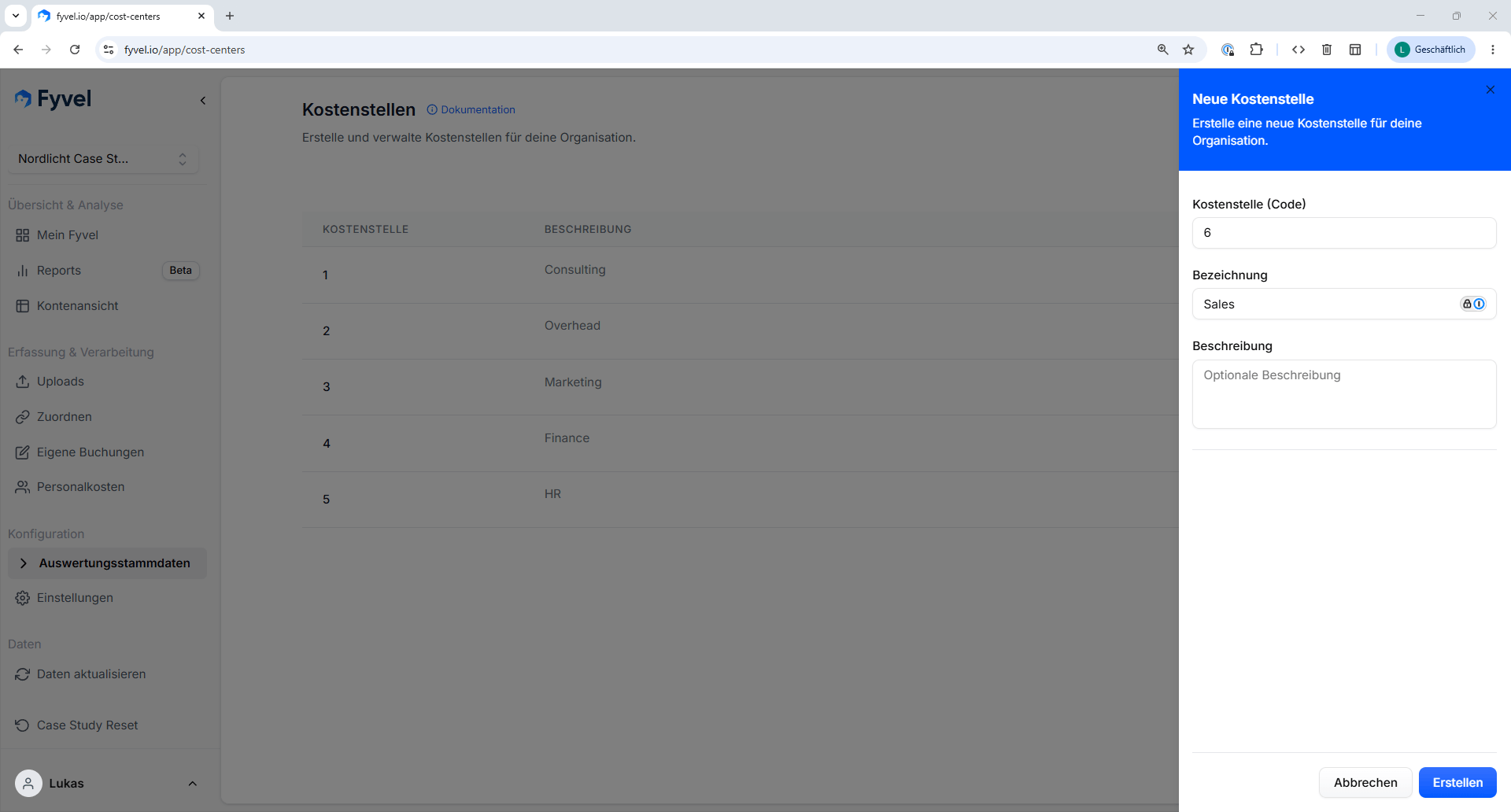
Click "Create cost center" and fill in:
| Field | Description |
| - | - |
| **Cost center (code)** | The numeric code of the cost center (for example 5) |
| **Name** | A readable name (for example "Sales Berlin") |
| **Description** (optional) | A short explanation of what the cost center is for |
### What is a cost center?
A cost center is a numeric code that represents a department, a project, or a cost unit in your company. In accounting, cost centers assign bookings to specific areas.
In Fyvel you can:
* **Name cost centers** — give each code a readable label (for example code 5 → "Sales Berlin").
* **Store descriptions** — optionally document what a cost center is for.
* **Use names across the organisation** — the stored names appear automatically in categories, personnel-cost splits, and filters.
### Create a cost center
Click "Create cost center" and fill in:
| Field | Description |
| - | - |
| **Cost center (code)** | The numeric code of the cost center (for example 5) |
| **Name** | A readable name (for example "Sales Berlin") |
| **Description** (optional) | A short explanation of what the cost center is for |
 ### Edit and delete a cost center
Click the pencil icon in the table to edit a cost center. Use the trash icon to delete one.
### Where do cost-center names appear?
Once you have given a cost center a name, it is shown everywhere in Fyvel:
* **Categories** — in the category list and in the cost-center filter, the name appears next to the code (for example "5 – Sales Berlin").
* **Personnel costs** — in the cost-center split and in the default allocation, cost centers are listed with their name (for example "Sales Berlin: 60%").
* **Filters** — in every filter that filters by cost center, the name appears so you can orient yourself.
### Tip
Create cost centers before you start splitting personnel costs or assigning categories. Then every view shows readable names instead of only numeric codes.
***
This documentation is built and hosted on [Mintlify](https://mintlify.com), a developer documentation platform.
### Edit and delete a cost center
Click the pencil icon in the table to edit a cost center. Use the trash icon to delete one.
### Where do cost-center names appear?
Once you have given a cost center a name, it is shown everywhere in Fyvel:
* **Categories** — in the category list and in the cost-center filter, the name appears next to the code (for example "5 – Sales Berlin").
* **Personnel costs** — in the cost-center split and in the default allocation, cost centers are listed with their name (for example "Sales Berlin: 60%").
* **Filters** — in every filter that filters by cost center, the name appears so you can orient yourself.
### Tip
Create cost centers before you start splitting personnel costs or assigning categories. Then every view shows readable names instead of only numeric codes.
***
This documentation is built and hosted on [Mintlify](https://mintlify.com), a developer documentation platform.